
Ninchat interface view.
Ninchat interface view.
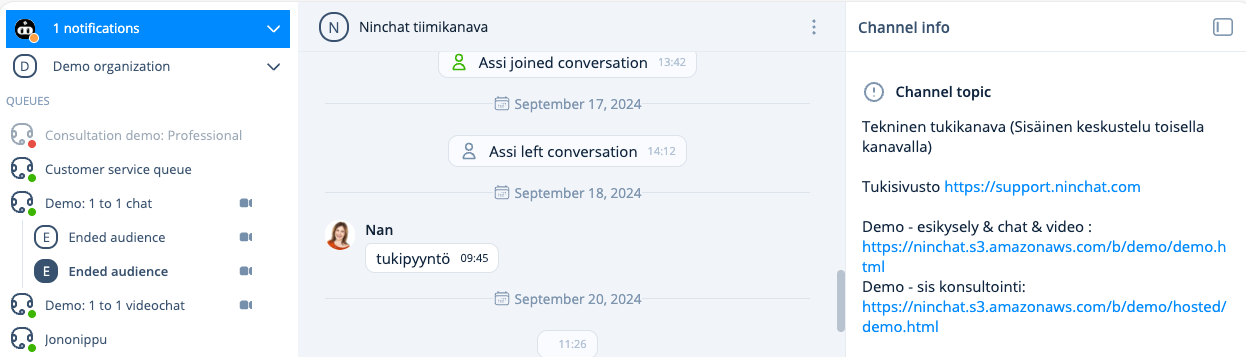
Channel information opened.

Channel information closed.
 Star, solid |
 Channel operator user (different from organization operator):
can manage channel settings and invite members
 Star, with border |
 Channel moderator user:
can moderate posts and remove members
 Green indicator | User is logged in and active |
|
Green indicator | User is logged in and active |
|  Orange indicator | User is logged in but not active |
|
Orange indicator | User is logged in but not active |
|  No indicator | The user is not present; they will see the messages addressed to them later. |
|  Invite people to channel | Invite new people to the channel (Channel operator) |
### **Sidebar (discussion list)**
In the sidebar you can see all your customer queues and easily switch between conversations. Notifications about new events and conversations are also displayed here.
No indicator | The user is not present; they will see the messages addressed to them later. |
|  Invite people to channel | Invite new people to the channel (Channel operator) |
### **Sidebar (discussion list)**
In the sidebar you can see all your customer queues and easily switch between conversations. Notifications about new events and conversations are also displayed here.
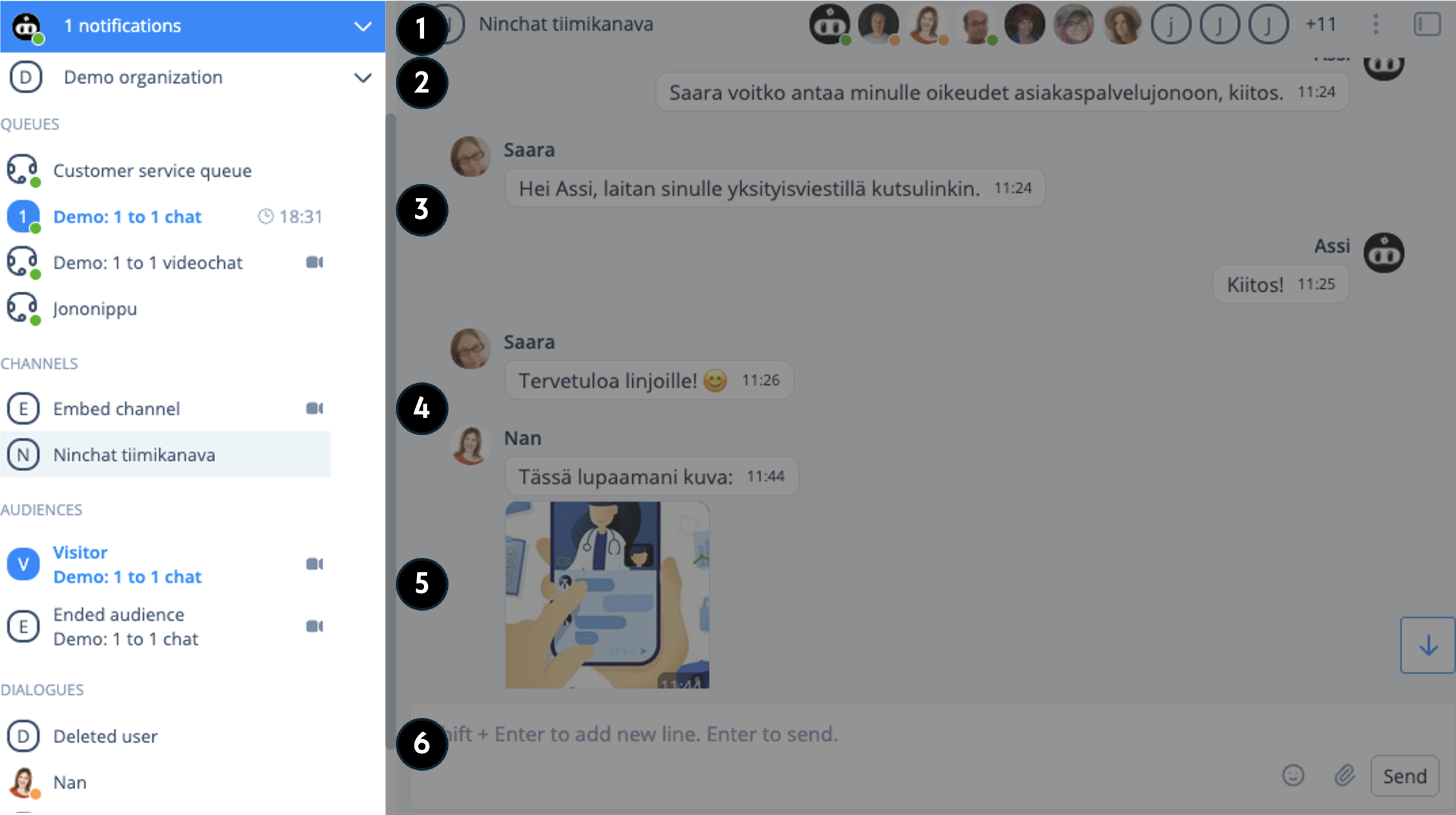
| Section | Function |
|---|---|
| 1) User menu | Transition to the home screen, settings and profile and logout. |
| 2) Organization | Organization dashboard, and switching organizations if you belong to more than one. |
| 3) Queues | Customer queues from which customers are picked. |
| 4) Channels | Internal team channels, public group chats and video channels. |
| 5) Customer conversations | Customer conversations picked from queues. |
| 6) Private conversations | Internal, private conversations with team members. |

User menu actions.
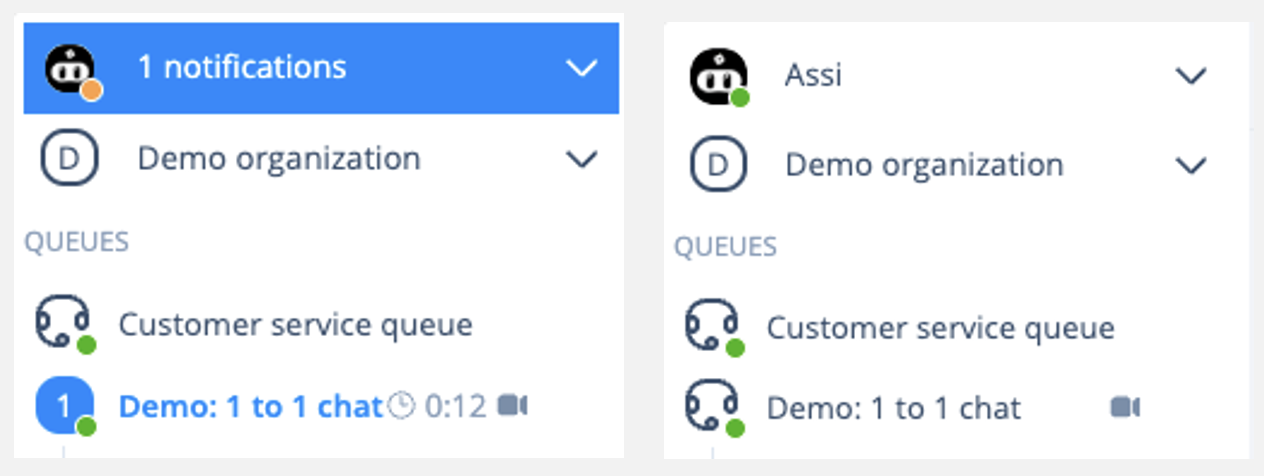

Organization dropdown menu.
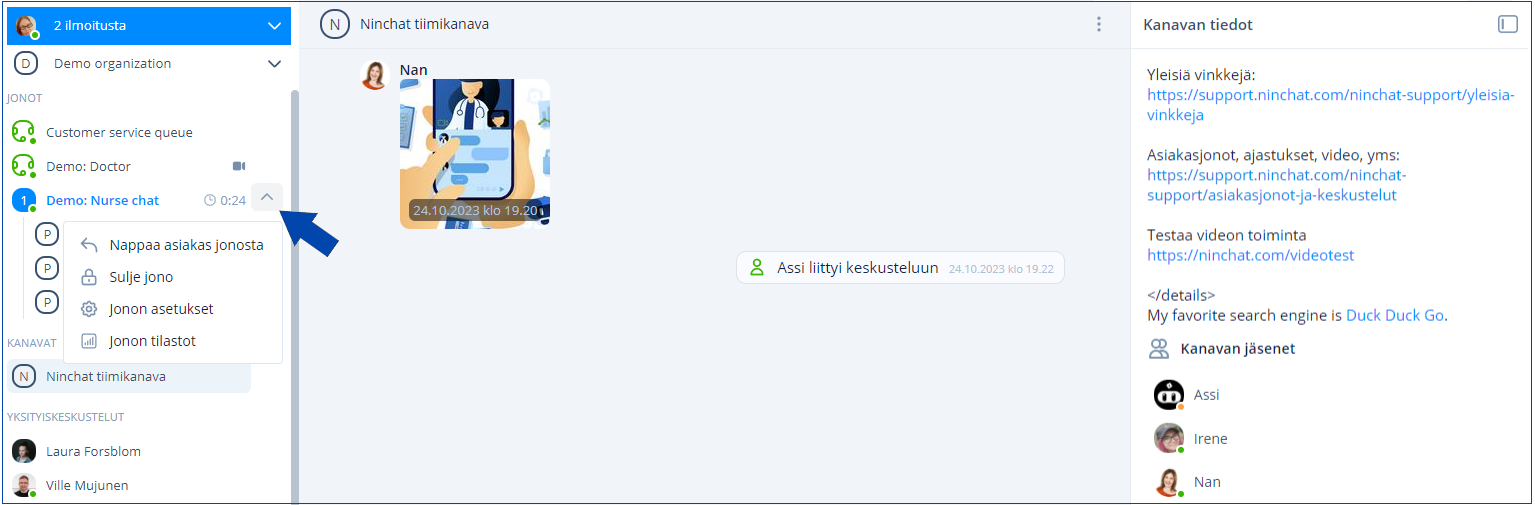
Customer queue actions.
 * Add images and files
  * Start a video conversation (customer conversations)
  * Insert canned messages
  * Send a message using the Send button or the Enter key. Line breaks can be created using Shift + Enter.
During a customer conversation, you can also:
* Insert canned responses
* Write notes
* Add tags
## Channel details and members list
* Send a message using the Send button or the Enter key. Line breaks can be created using Shift + Enter.
During a customer conversation, you can also:
* Insert canned responses
* Write notes
* Add tags
## Channel details and members list
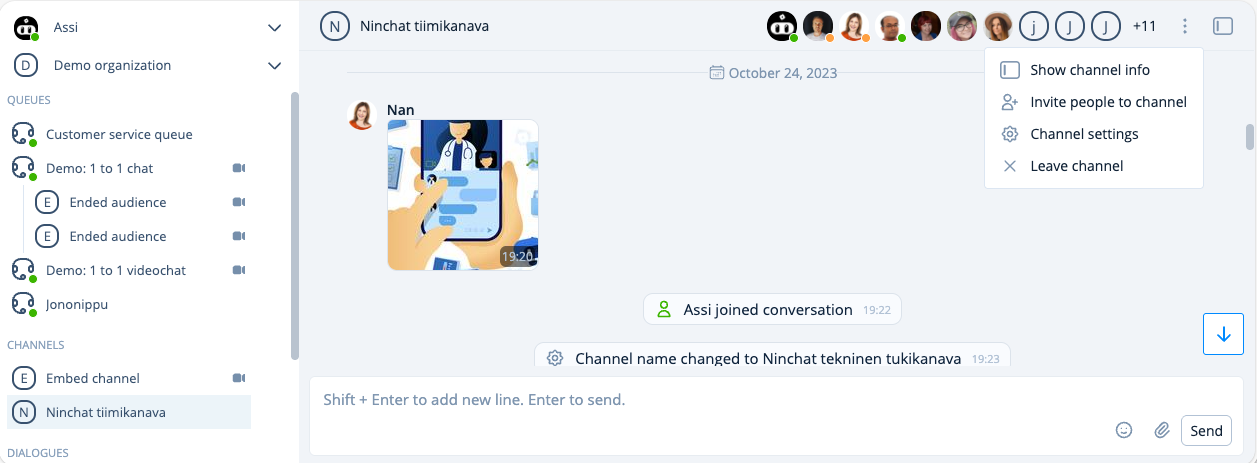
Next to the three-dot menu you will find the channel details icon.
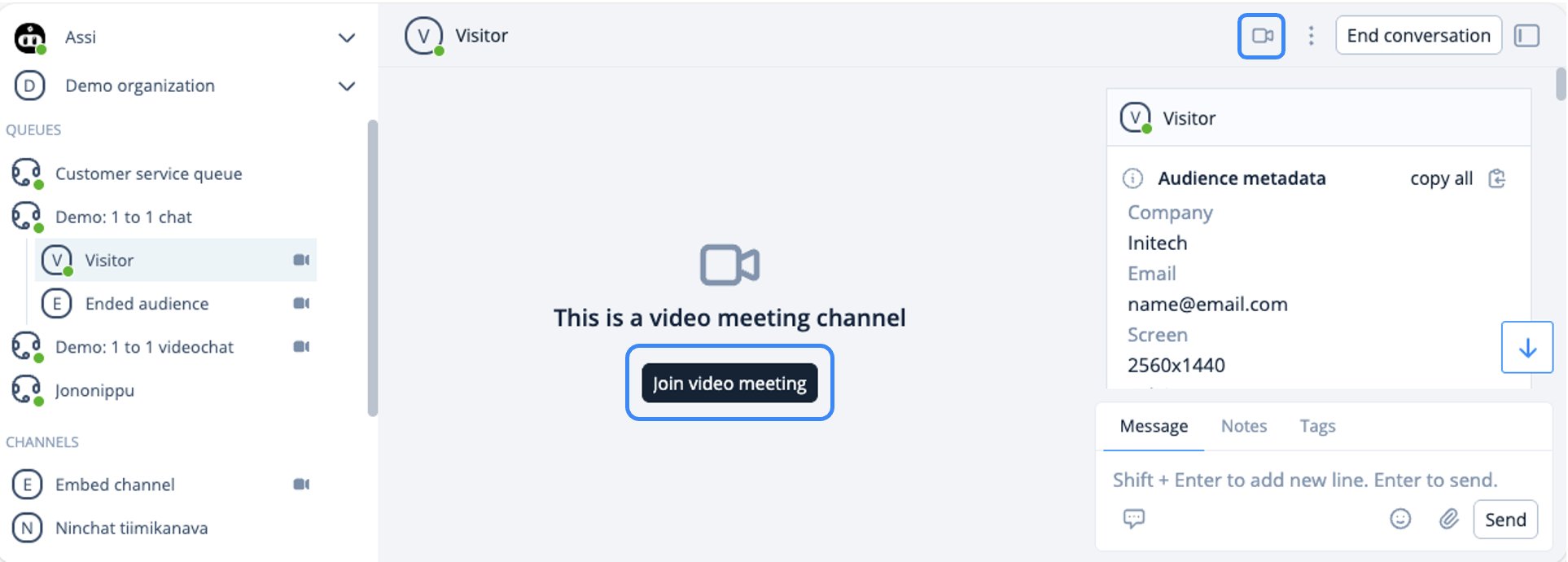
When you click the Join video meeting button, you will start the video call.
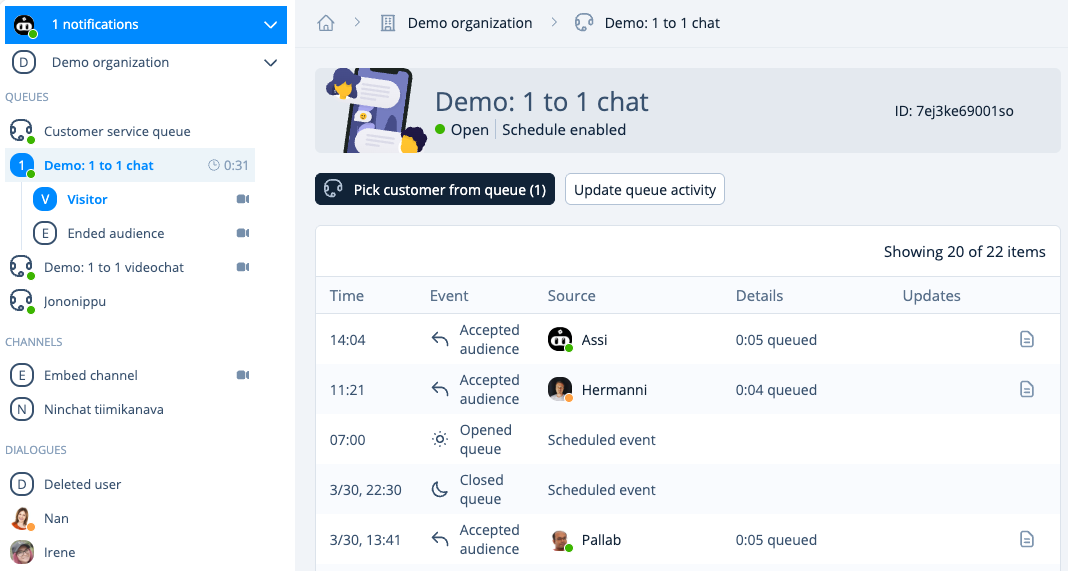
Customer queue activity view and event log.

Viewing conversation content from the Queue activity view (operators).
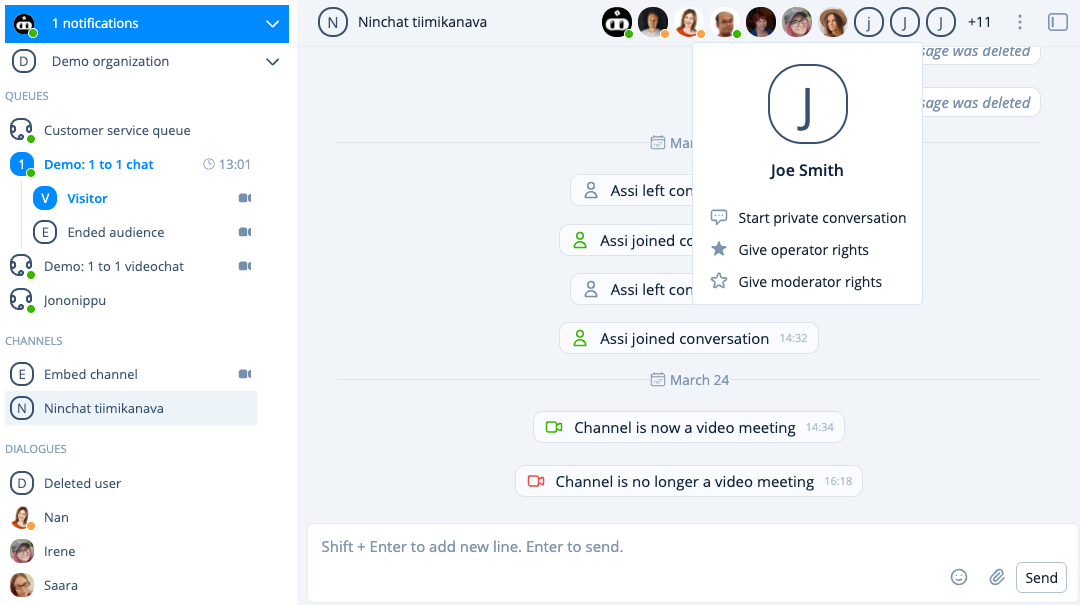
Starting a private conversation.