For the complete documentation index, see llms.txt. This page is also available as Markdown.

Channels

Iroduction to channels and instructions on how to manage them.

Overview

A team channel is a multi-people chat room within an organization, usually private. You can use a team channel to chat and upload files in real time with your colleagues. Channels can also be public, such as embedded group discussions or invited to external partners.

Team channels can be created to meet the needs of different topics and groups, such as:

  • Office - General discussion

  • Sales - Discussion of sales and customer relationships

  • Encoders - Discussion of application development

  • Project X - Discussion of a specific client or project

  • Public - Embedded customer discussion on a web page

Channels in the left bar.

Team channel rights

Symbol
Meaning

Star, filled

Channel operator (different from organization operator) - can manage channel settings and invite new people to the channel.

Star, outline

Channel moderator - can moderate chat and remove people from the channel.

Green notification

User is logged in and active.

Orange notification

User is logged in but not active.

No notification

User is offline. The user will see messages addressed to him/her later.

Adding a user to a channel

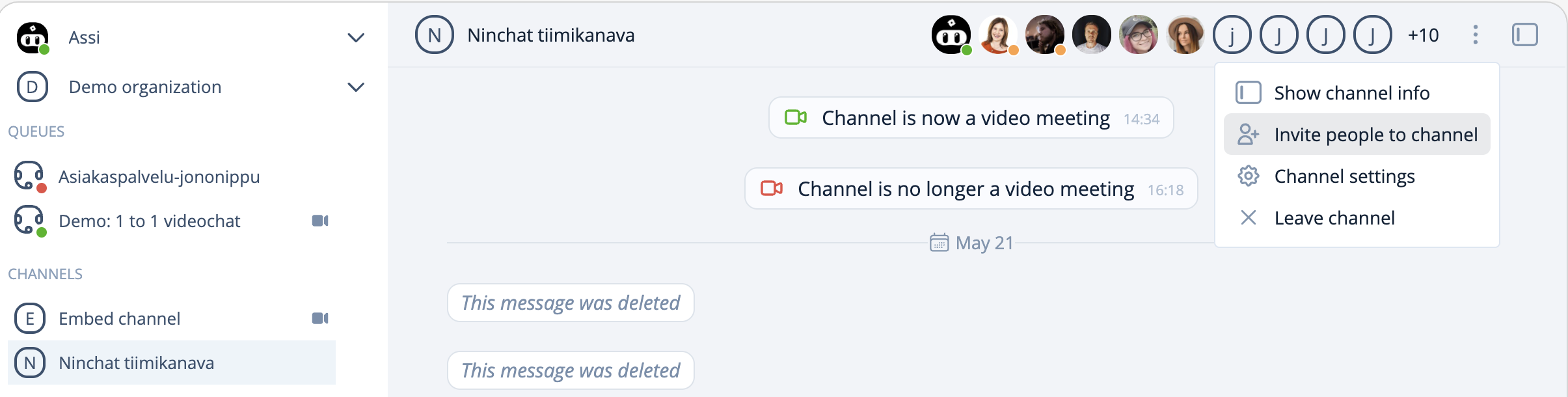
Channel operators can invite new members to a channel. Send or copy an invitation link by selecting "Invite people" from the header menu. See the detailed instructions below:

Add a user to a channel

Channel operators can invite new members to the channel. Click "Invite people to channel" from the menue in the header. See "How to invite people to channel?" below for detailed instructions:

Inviting new members to channelRemoving a member from a channel

Private conversations with team members

Private conversations

Send messages and files

Write your messages in the text field (where it is written "Enter your message"), at the bottom of the conversation section. The text field grows bigger when you write longer. Click the-send button or use the [Enter] key on your keyboard to send a message. If you want to make a line break in your messages, use the [Shift] + [Enter] keys on the keyboard.

You can add emojis to your messages by clicking the smiley face icon and choose from the list.

Files

If adding files are allowed, you can click the-paperclip icon to upload a picture or file from your desktop/device to the channel conversation. Image files are displayed as thumbnails where you can click to open them. Other types of files are displayed as a linkthat users can click to download.

Canned messages

Canned messages can also be used on channels, even though they do not appear as a list. Type the slash [/] and the keyword of a canned message you want to use, and press the [Spacebar] key on your keyborad, the canned message will then appear in the text field. For example:

Keyword

Canned message

open

We are open on weekdays from 9 am to 5 pm.

You can use canned messages also on the channel by typing slash [/] and the preferred keyword.

Moderating channel

Channel moderation

Leave a channel

Note! Leaving a channel will completely remove you from the channel. Depending on the channel settings, your previous chat history may be hidden from you if you re-join the channel.

You can always switch between different conversations via the Sidebar without leaving any channels.

To leave a channel, click the arrow icon next to the channel name in the Sidebar and select "Leave channel" and proceed according to the pop-up window.

Reconnecting to a team channel usually requires a channel invitation from a channel operator.

Delete a channel

A channel exists as long as it has members. If the last/only member agent leaves the channel, the channel and its chat history will be deleted. This works the same for private discussions.

Additional information

Channel settingsUser Interface Introduction

Last updated