> For the complete documentation index, see [llms.txt](https://support.ninchat.com/ninchat-support/llms.txt). Markdown versions of documentation pages are available by appending `.md` to page URLs; this page is available as [Markdown](https://support.ninchat.com/ninchat-support/english-new/user-interface/queue-management/queue-settings.md).
# Queue settings
Here you can find instructions on how to edit queue settings with operator rights.
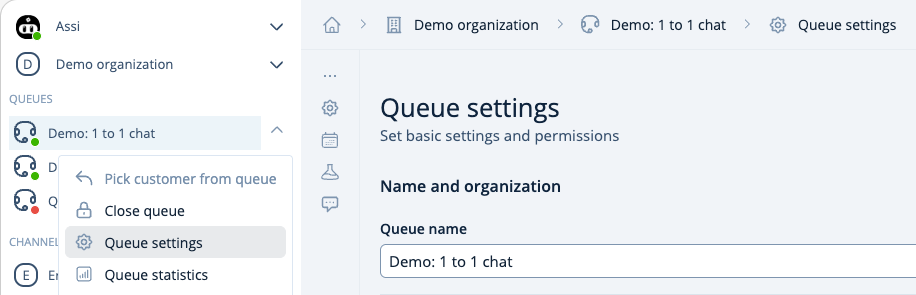
Go to the customer queue settings by clicking the arrow icon next to the queue name. Select "Queue settings.
Choose Queue settings from the dropdown menu.
### **Name and organization**
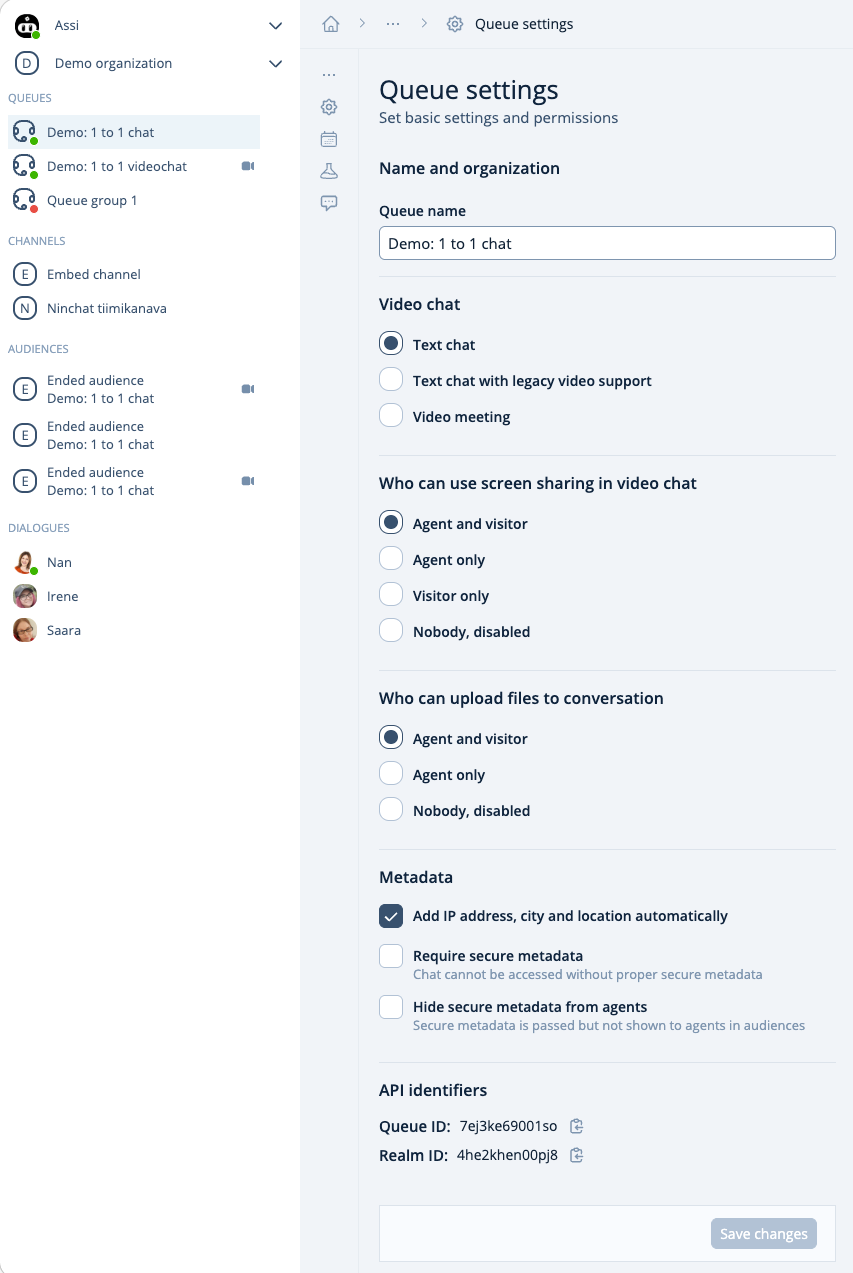
In the "Name and organization" section, you can set and modify the queue name.
### **Video Conversation**
In the "Video Conversation" section, you can decide who initiates the conversation and how it starts. If the video conversation is set to begin at the expert's initiative, only the expert can start the video conversation. Text-based conversation is also possible, allowing the video to be opened if needed. You can select a video meeting option when you want to allow either party to initiate the video conversation.
### **Who Can Upload Files to the Conversation**
Here, you can choose whether to restrict file sharing, for example, to professionals only, or allow the customer to share files in the conversation as well. You can also disable file sharing entirely, so no one is able to upload files.
### **Metadata**
In the metadata settings, you can choose what information about the conversation is transmitted and who can view it.
The queue settings view.
**In the queue general settings, you can edit the following:**
* Change the queue name.
* Chose text or video chat.
* Chose who can upload files during the conversation.
* Set whether metadata, such as the customer's location and IP address, is automatically attached at the beginning of the conversation. For additional information about adding other metadata, please contact Ninchat staff.
* Define encrypted metadata as mandatory (see more details in: Customer Queues and Conversations).
{% hint style="info" %}
Remember to save the changes you make
{% endhint %}
## Queue scheduling
See the guidance for queue scheduling here:
{% content-ref url="/pages/-Li7xMP\_5UU5Qw6q74LH" %}
[Queue schedule](/ninchat-support/english-new/user-interface/queue-management/queue-schedule.md)
{% endcontent-ref %}
## Advanced settings
In advanced settings, you can set up transfer queues, manage audience registering and ticketing, and ad notes in the editor.
### Transfer queue
You can select the queues to which you want to transfer the customer. Choose the desired queues from the list that opens under the 'Set transfer queues' section. You can also search for a specific queue by typing the beginning of its name in this section. Click the Add button next to the desired queue, and it will be added to the selected queues.
Queue settings define the allowed transfer queues. For further details, please contact Ninchat personnel.
### Audience registering
Save offline contacts or questionnaire answers and selections e.g. for statistics
### Audience ticketing
Registered contacts can be assigned as tickets. Unassigned contacts are displayed as highlighted.
### Ticket order and SLA
With **Assign to oldest ticket**, tickets are assigned automatically from oldest to newest. Individual assignment from the list is not available when this option is enabled.
With **Queueing time SLA**, you can track ticket handling time and configure reminder and warning times. See the [audience ticketing guide](/ninchat-support/english-new/user-interface/customer-service-queues-and-conversations/audience-ticketing.md) for more information about tickets.
### Public queueing time
**Public queueing time** exposes the queueing-time estimate publicly for integrations. Enable this setting only when the queueing time is intentionally shared externally.
### Notes
Notes is an advanced feature which allows adding one or more form fields within a customer care conversation that can be saved as notes. Notes made by customer service representatives are also stored in chat history.
Contact Ninchat staff for more information.
Queue advanced settings.
## Queue statistics
{% content-ref url="/pages/-LNnunpgXo8DXFIgpLjg" %}
[Queue statistics](/ninchat-support/english-new/user-interface/queue-management/queue-statistics.md)
{% endcontent-ref %}
## Manage queue and queue members
{% content-ref url="/pages/-LNjnF0\_2t3ElgwgfJhh" %}
[Manage queues and queue members](/ninchat-support/english-new/user-interface/queue-management.md)
{% endcontent-ref %}