> For the complete documentation index, see [llms.txt](https://support.ninchat.com/ninchat-support/llms.txt). Markdown versions of documentation pages are available by appending `.md` to page URLs; this page is available as [Markdown](https://support.ninchat.com/ninchat-support/english-new/user-interface/queue-management/queue-schedule.md).
# Queue schedule
The customer queue schedule and how to manage it.
### Overview
You can schedule a queue to open and close automatically, so agents do not have to manually change the queue state. You can also add exceptions that occur annually or just once.
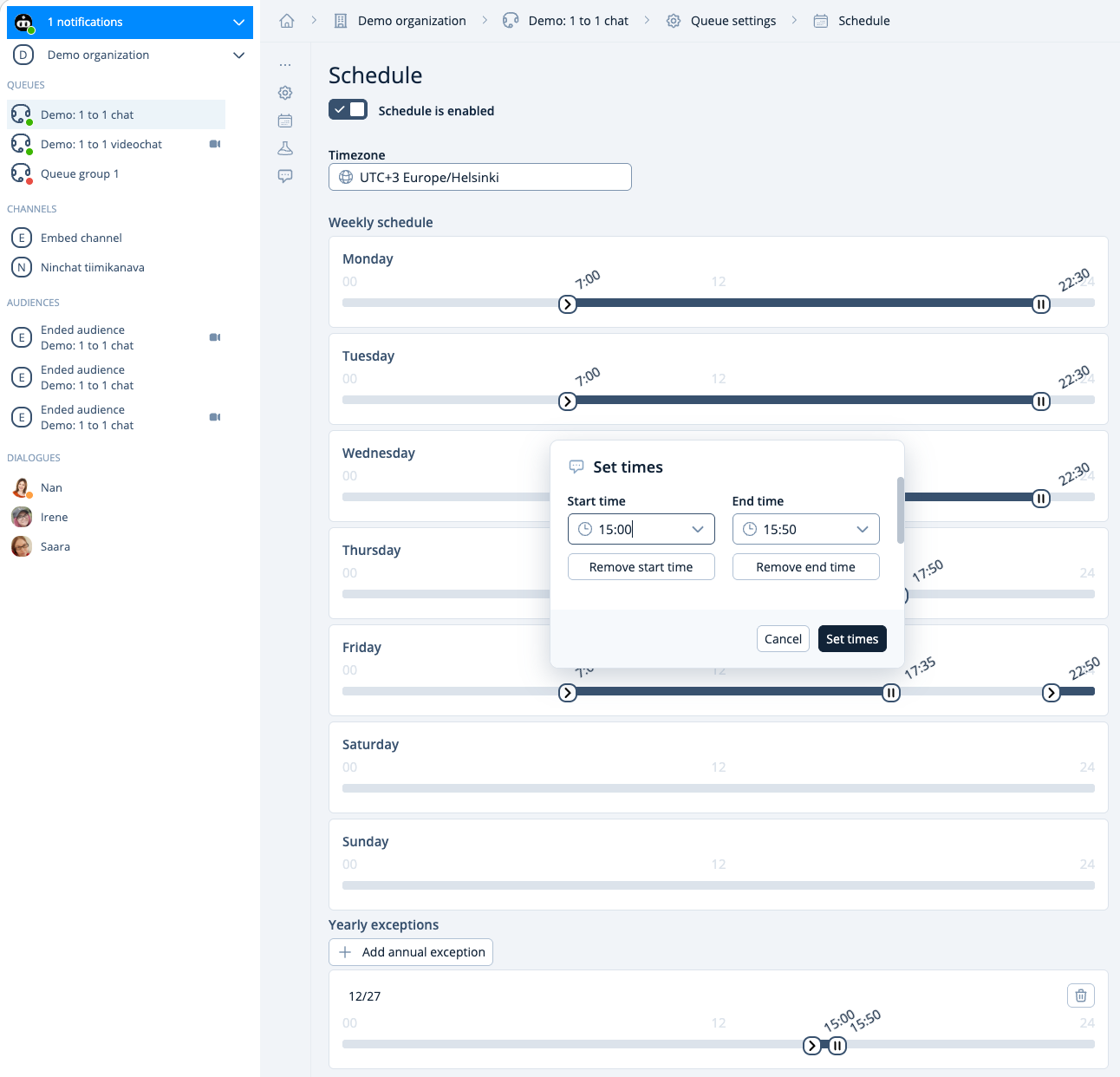
Klick on the timeline to set, change or remove a preferred time.
{% hint style="info" %}
Note! Schedule operates based on current time. Thus, your customer queue will not open/close if the scheduled time is set ahead of the current time. You can always open/close a queue manually from the Sidebar queue menu..
{% endhint %}
### **Create a schedule**
Create a recurring weekly schedule for your customer care queue. To get started, click anywhere on the timeline of the preferred day of the week to edit the opening and closing times.
{% hint style="info" %}
Remember to save your changed settings.
{% endhint %}
### Recurring weekly schedule
You can create multiple opening and closing times for each day:
* Add a new event by clicking on the timeline below the desired weekday. Move the arrow and double line representing the start and end times to their respective positions.
* For example, in the image, on Wednesday, the chat opens at 10:00 and closes at 17:00, and then reopens from 19:00 to 22:00.
* Remember to save the changes!
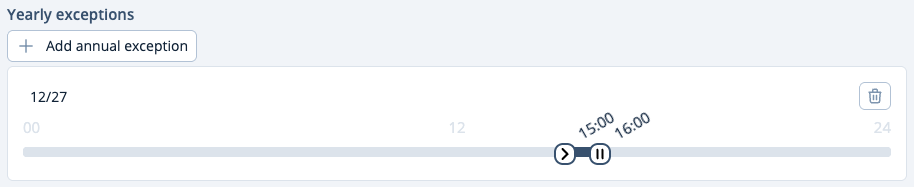
### Create annual exceptions e.g. for holidays:
* Click the "Add annual date" button.
* An annual exception requires both opening and closing times.
* If you do not want the chat to open at all on a particular day, choose the date without adding opening or closing times.
### Create one-time exceptions:
* Click the "Add exception" button.
* Creating a one-time exception will override the schedules and annual exceptions. This exception occurs only once on a given day without repeating annually.
* You can add a date without opening and closing times which will keep the chat closed for the whole day.
### Vacation break - Schedule on/off
The function "Enable schedule" allows you to quickly turn the queue schedule on or off.
If you keep the chat closed, for example during summer or Christmas holidays, it's easier to set the schedule off instead of creating exceptions. When the agents return from holidays, the schedule can be quickly switched back on by ticking the "Enable schedule" box again.
Remember to set a desired closed message for holidays and preferably in advance.
## Problem situations:
#### Scheduled timings did not take effect
> Remember to save the changes before exiting the settings.
#### Scheduled timings or exceptions are not saved or are displayed incorrectly
> When creating schedules, use Chrome or Edge browsers. Errors may occur when saving schedules using Mozilla Firefox.
#### I modified the schedule for the same day, but the chat still does not open/close
> Scheduling actions occur at the designated times. The customer queue will not automatically open if the opening schedule is set earlier than the current time. You can always manually open the queue via the sidebar queue menu.