> For the complete documentation index, see [llms.txt](https://support.ninchat.com/ninchat-support/llms.txt). Markdown versions of documentation pages are available by appending `.md` to page URLs; this page is available as [Markdown](https://support.ninchat.com/ninchat-support/english-new/user-interface/queue-management.md).
# Manage queues and queue members
You can find the settings for the queues through the Organization settings.
With operator rights, you can view all of your organization's queues in the 'Queues' section of the Organization Settings, access the settings and statistics for each queue, and manage queue members.
{% content-ref url="/pages/-LNntpfHw8Gjzjjxak7L" %}
[Queue settings](/ninchat-support/english-new/user-interface/queue-management/queue-settings.md)
{% endcontent-ref %}
{% content-ref url="/pages/-LNnunpgXo8DXFIgpLjg" %}
[Queue statistics](/ninchat-support/english-new/user-interface/queue-management/queue-statistics.md)
{% endcontent-ref %}
{% content-ref url="/pages/3QUXtrfrpJkR0k3cyRHa" %}
[Queue groups](/ninchat-support/english-new/user-interface/organization/queue-groups.md)
{% endcontent-ref %}
### Manage queue members
You can manage the members belonging to a specific queue, add and remove them in the 'Queues' section of the Organization dashboard. You can manage an individual user's queues by clicking on the user row in the 'Organization' section.
Manage queue member status for a single user by clicking the agent row in the "Organization" tab.
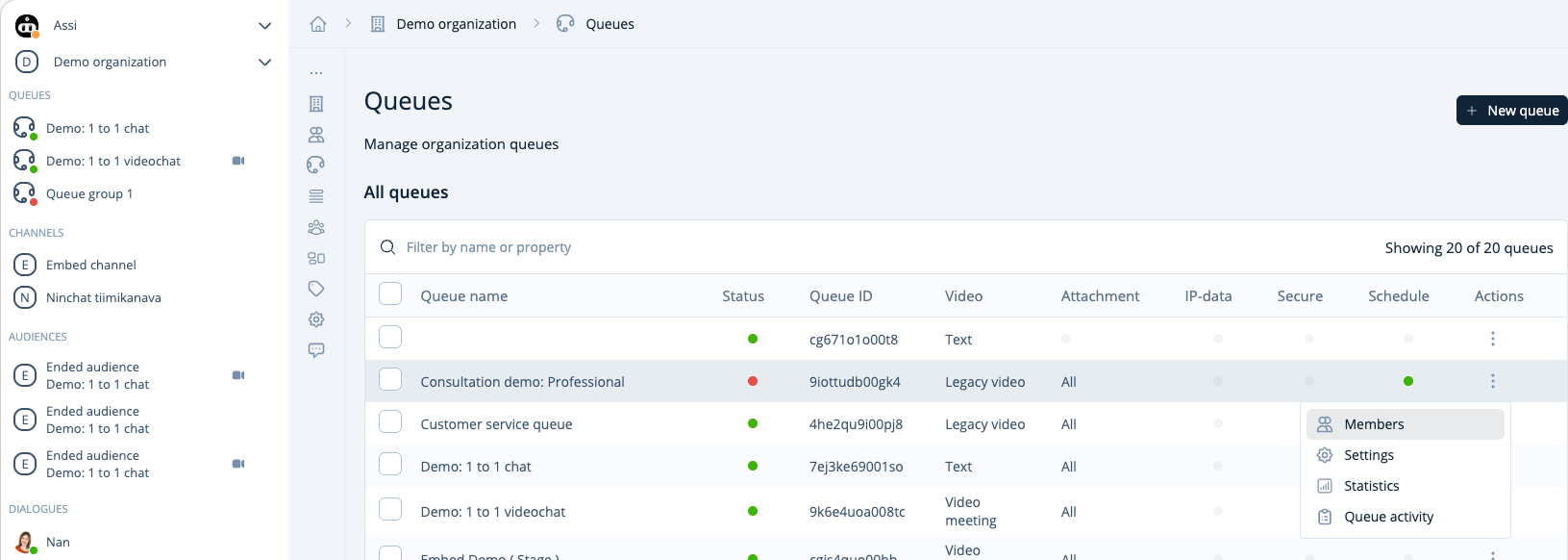
1\. Choose 'Queues' from the Organization dashboard menu, click the three-dot menu on the right, and choose 'Members'.
Choose the queue that members you like to manage
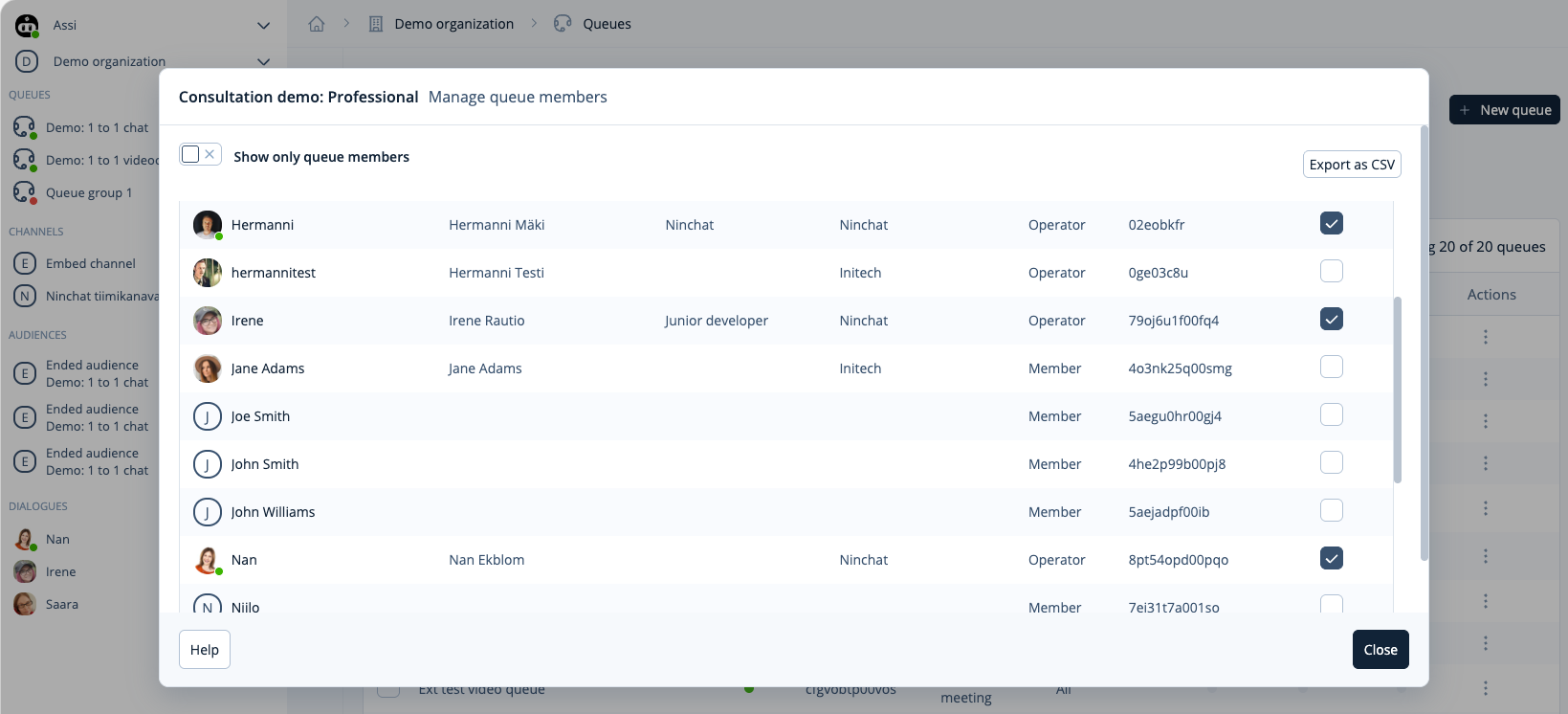
2\. A view opens with a list showing which members of the organization belong to the specific queue. You can add or remove members by checking or unchecking their names.
Ad or remove organization memebers from the queue.
### Adding a New Queue
In the Queues view, clicking the "New queue" button will open the "Create a new queue" view. Enter the queue name, select the desired features, and click "Create queue."