> For the complete documentation index, see [llms.txt](https://support.ninchat.com/ninchat-support/llms.txt). Markdown versions of documentation pages are available by appending `.md` to page URLs; this page is available as [Markdown](https://support.ninchat.com/ninchat-support/english-new/user-interface/organization/organization-canned-messages.md).
# Organization canned messages
Manage the organization’s shared canned messages in the organization settings.
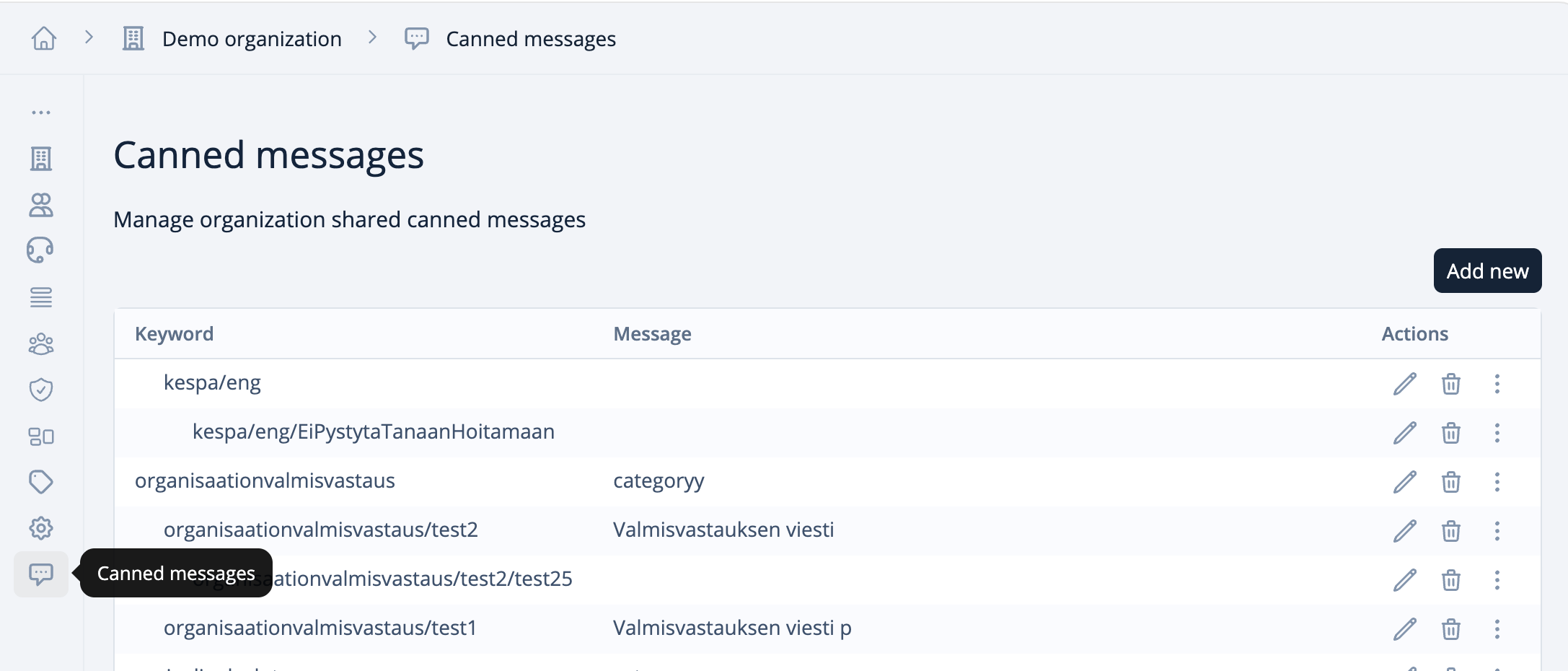
Click the organization name and select **Organization dashboard** from the drop-down menu. Then select **Canned messages**, the bottom option in the vertical menu.
In this view, you can edit existing organization-wide canned messages by clicking the pencil icon or delete them. Click **Add new canned message** to open the editing view.
At the bottom of the page, you can select the supported languages. Use the search field to search by the English name or language abbreviations. Once you add languages, separate sections for each language will appear in the editing view when you add or edit a canned message.
Canned messages added to the organization are available in all of the organization’s queues. Their availability can be configured for individual queues in the queue settings.
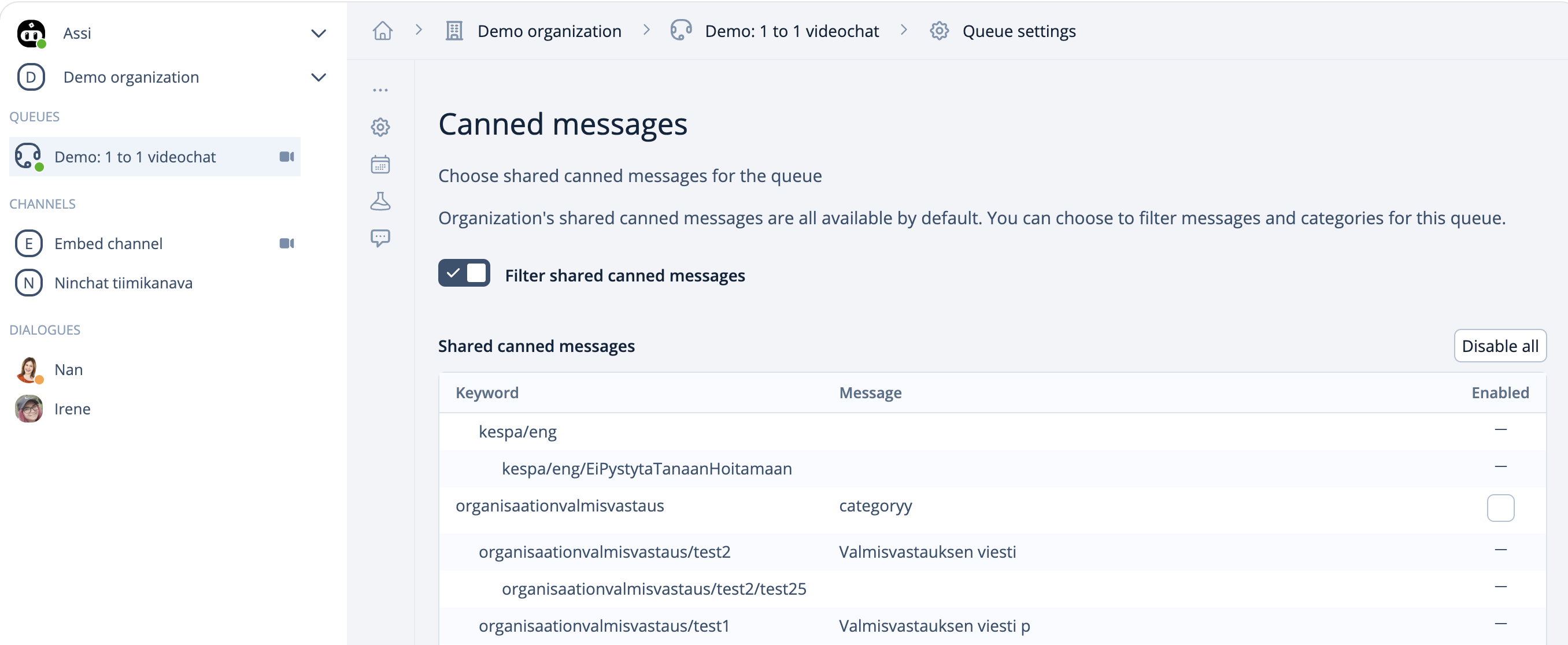
Go to the settings of the selected queue and select **Canned messages** from the vertical menu. You can exclude all shared canned messages using the **Filter shared canned messages** toggle or disable all canned messages by clicking **Disable all**. Select the canned messages you want to make available in the queue and save your changes.
Once you have selected and saved the desired organization canned messages for a specific queue, they will be available to every member of that queue. Members must ensure that **Shared canned messages** is set to **Off** under **Canned messages** in their personal settings.