> For the complete documentation index, see [llms.txt](https://support.ninchat.com/ninchat-support/llms.txt). Markdown versions of documentation pages are available by appending `.md` to page URLs; this page is available as [Markdown](https://support.ninchat.com/ninchat-support/english-new/user-interface/customer-service-queues-and-conversations/video-meetings.md).
# Video meetings
## General
Video meeting can be used in customer conversations when text messages and attachments are not enough. With operator rights, you can specify in the queue settings whether the queue is for video meetings or text chats.
If a queue is set up as a text chat, the professional still has the possibility to send the customer a video invitation during the chat.
The speech bubble icon will appear blue when the customer has sent a written message.
Before you start taking video meetings, test your equipment (camera & audio devices, web browser, connection) compatibility and functionality with Ninchat Video Meeting Test Tool.
[**Open the video meeting test tool**](https://ninchat.com/videotest)
## Video meeting view
To display the text conversation, audience metadata and the questionnaire responses, click the speech bubble icon in the top bar. The video remains visible in a smaller window in the center of the screen, allowing you to see the customer while reading the text written in the chat.
## Start a video meeting
A video meeting cannot be started if the customer’s device, browser, or internet connection does not support video calls. Compatibility can be tested using the video test tool; see the Troubleshooting section.
You can start a video call after accepting the customer from the queue.
1. Click the video camera icon in the top bar, if the queue is not set to a video meeting.
2. Check that the devices you want to use are working, and adjust the video background if desired.
3. Click the **Join meeting** button.
4. Wait for the customer to accept the video call invitation and save their device settings.
5. The video call will begin when the customer joins the meeting.
The view before joining a video meeting.
### Permission to use media devices
If the browser asks for permission to use the camera and/or microphone, accept the request.

## Video meeting settings and device selection
Before starting the video meeting you can evaluate the video, microphone and settings. You can hide your video feed or mute your microphone and ad a prefered background or blurring. A indicator will inform you that the video and audio are working. Click **Join meeting** when you are set.
{% hint style="info" %}
To start the video call, click **Join meeting** in the settings window. The video connection will then be activated, and an invitation will be sent to the other participant, who can join the meeting.
{% endhint %}
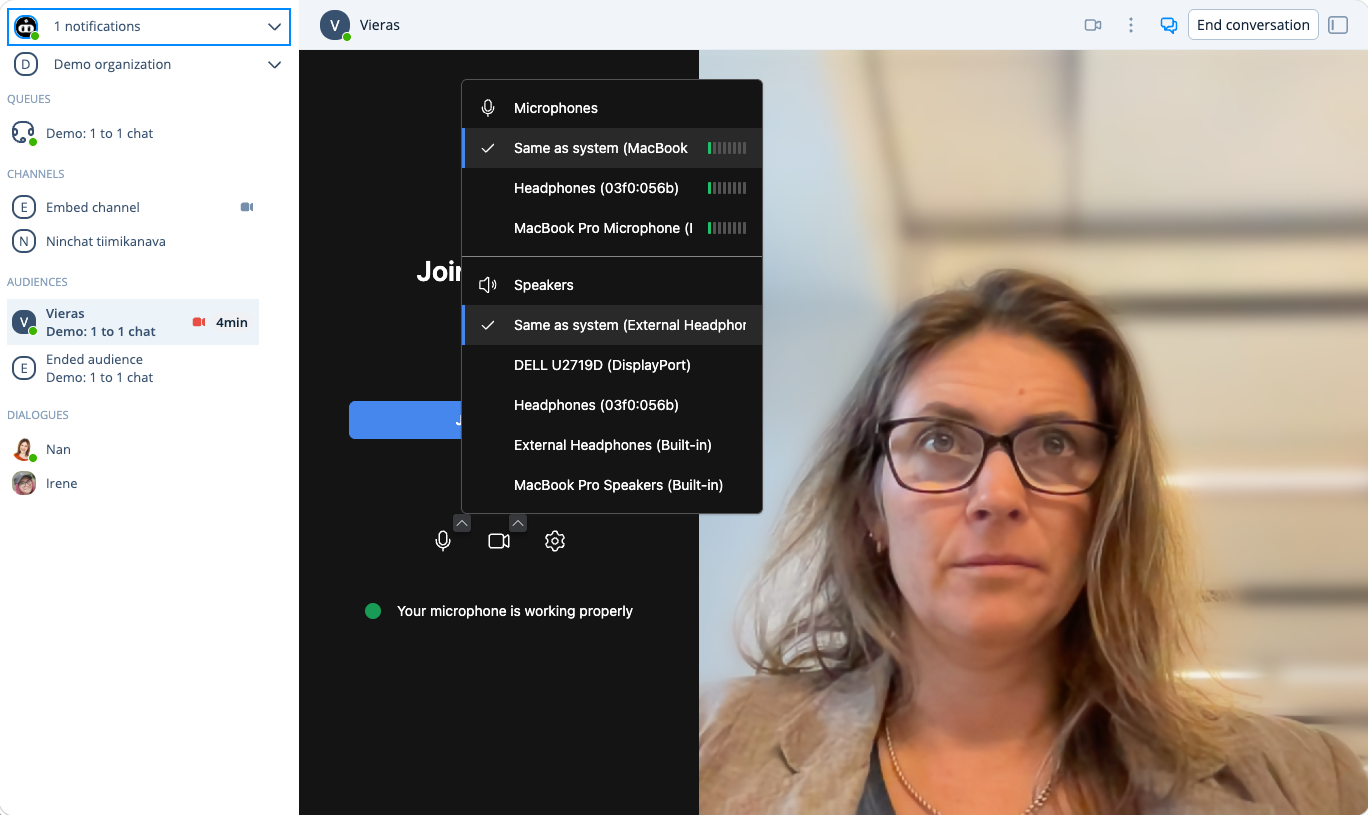
To change the audio devices you are using, click the arrow in the upper-right corner of the microphone icon.
You can find the video background options and video mirroring settings in the arrow menu of the video icon.
By choosin Virtual background you wil access the following options.
Blurring or adding a background from the Settings.
During the video meeting, you can hide your own video feed or mute your microphone if necessary.
By selecting grid view, you can see all participants in the same view.
### Screen sharing
By clicking Screen sharing icon you will access the modal with multiple options. You can select screen sharing after you have started the video call.
1. Click the screen-sharing icon.
2. Select the tab you want: Entire screen / Application window / Browser tab.
3. Below the tab, click the view you want to share.
4. The **Share** button will then become active. Click it.
5. Screen sharing will begin.
6. To stop screen sharing and return to the camera view, click the screen-sharing icon again.
Depending on your browser, you may be able to share your entire screen, an individual application such as a web browser, or a specific browser tab.
{% hint style="info" %} Note that Picture-in-Picture is a browser setting.
{% endhint %}
## Video functions
Option
Function
Display the video conversation in full-screen mode or return the video to its normal window size.
Exit full-screen view.
Turn the microphone on or off. When muted, the other participant cannot hear you.
Turn the video on or off. When off, the other participant cannot see you.
Turn screen sharing on or off. Instead of your camera feed, share the content of your screen, an application window, or a browser tab.
Open the video and audio device settings.
End the video call; this does not end the chat conversation.
### Ending the video meeting
End the video meeting by clicking the red phone icon . This will not end the chat session; it will only end the video call.
### Changing video settings during the call
You can change the video meeting settings during the call. Open the settings by clicking the gear icon. .
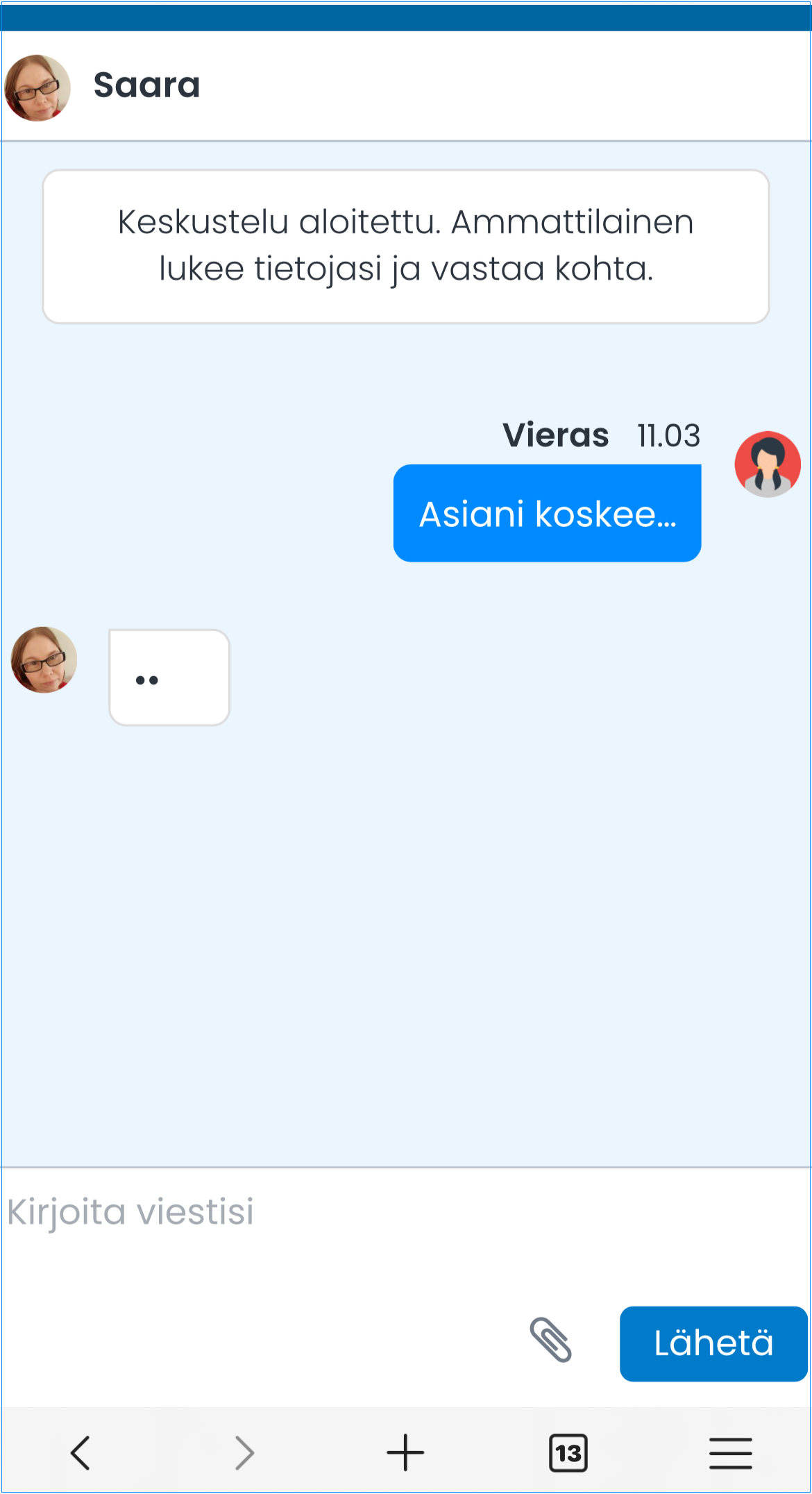
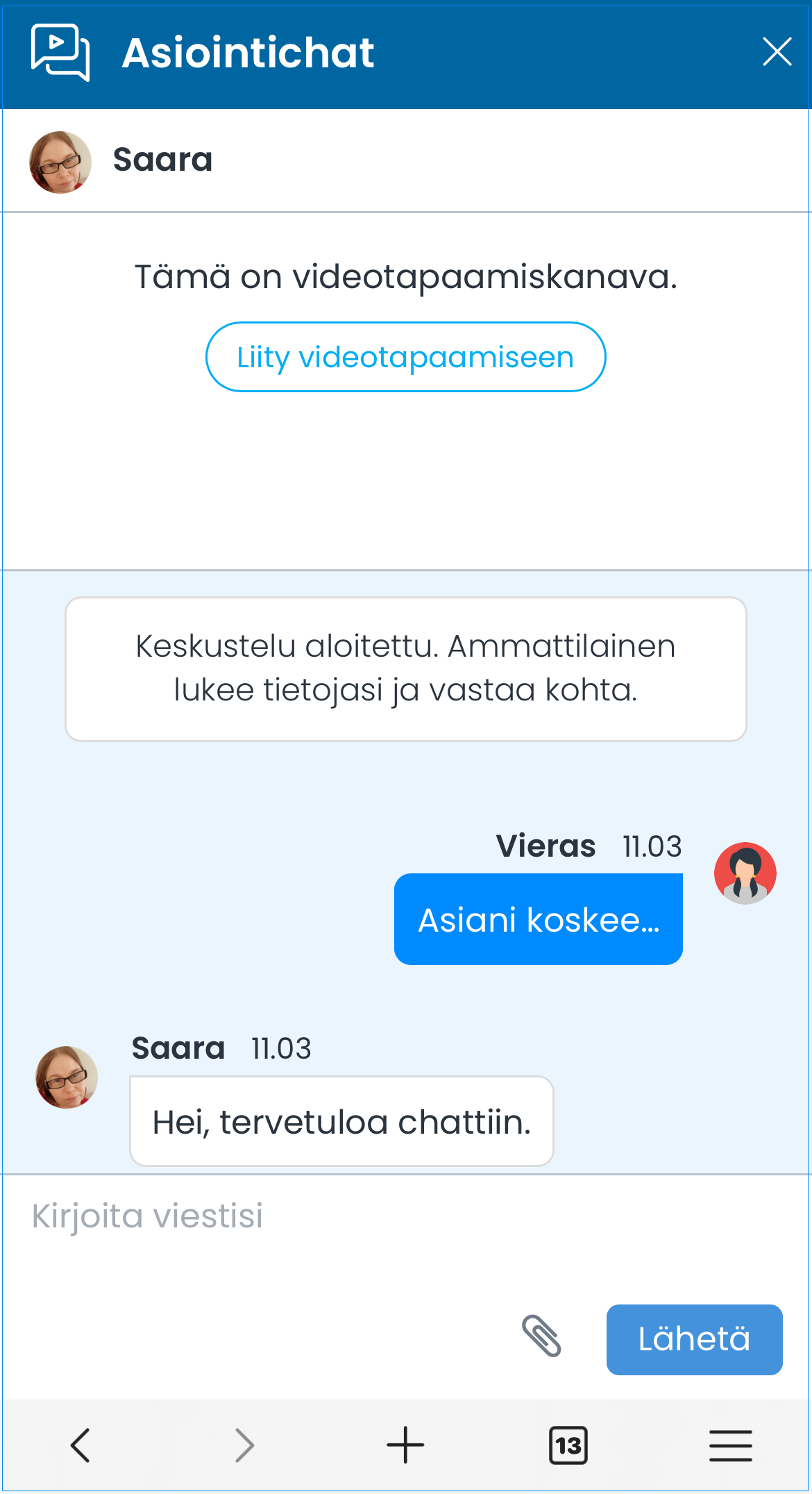
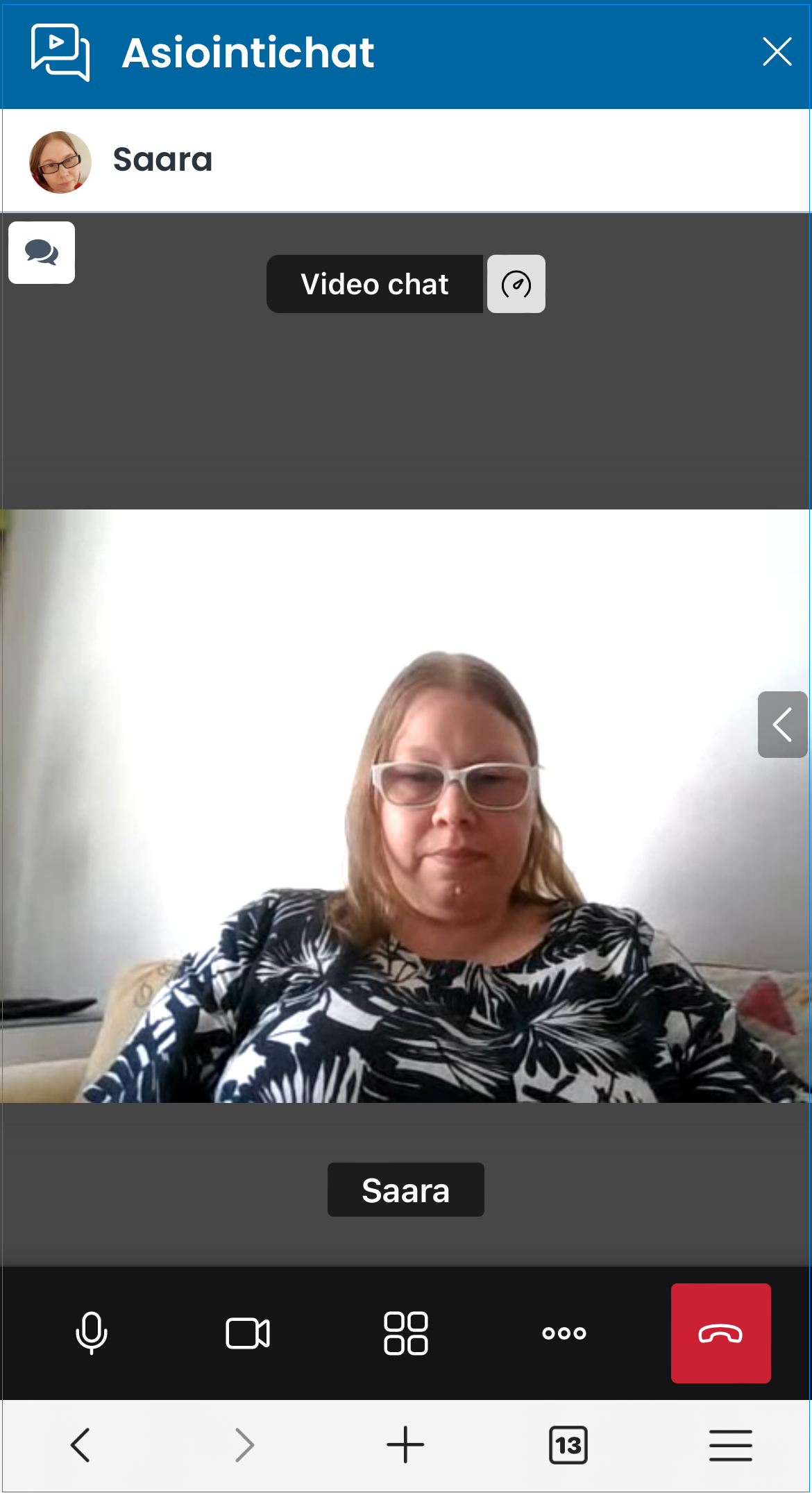
### Customer’s video call view
The image below shows what the video call looks like from the customer’s views.
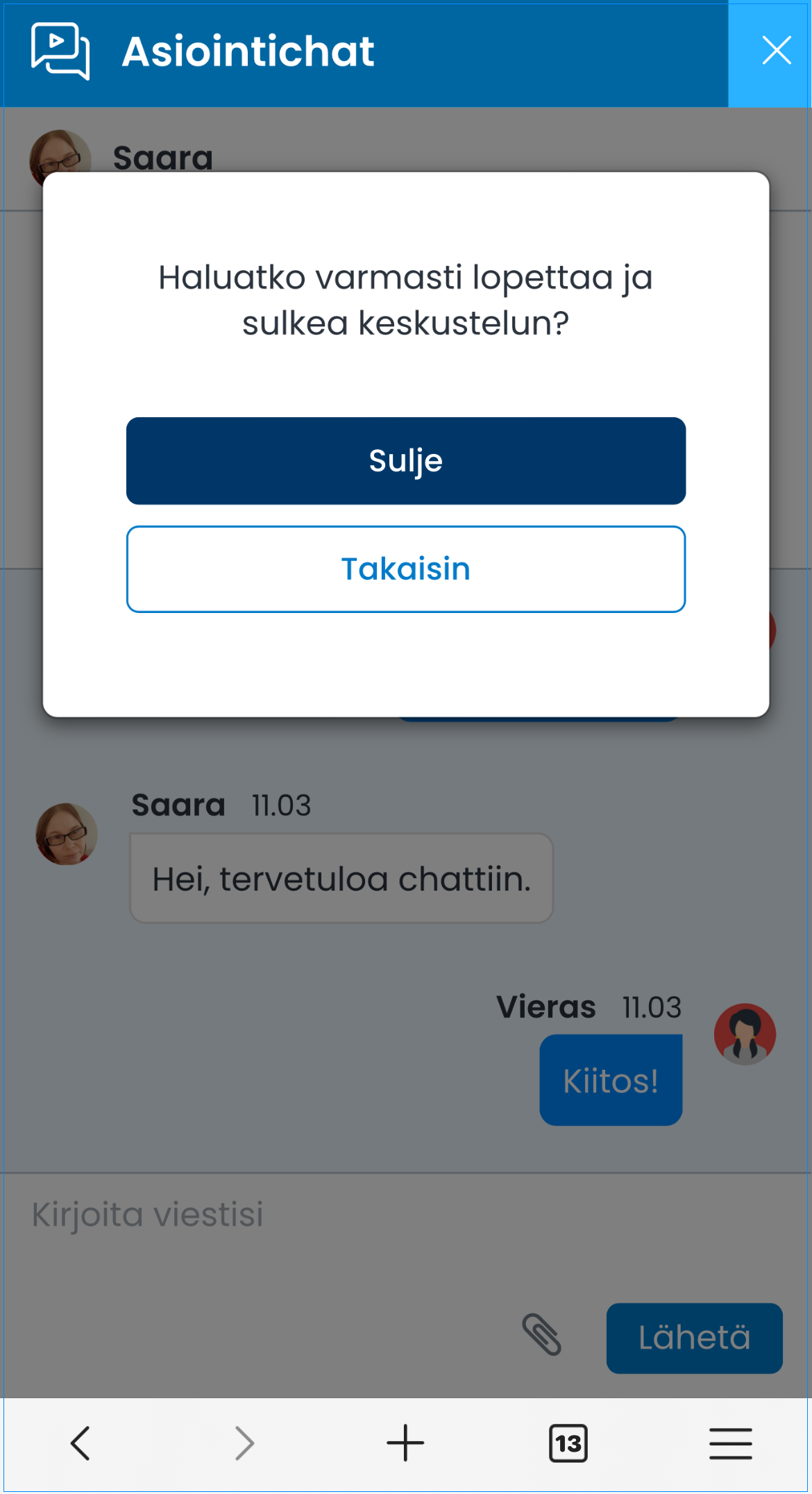
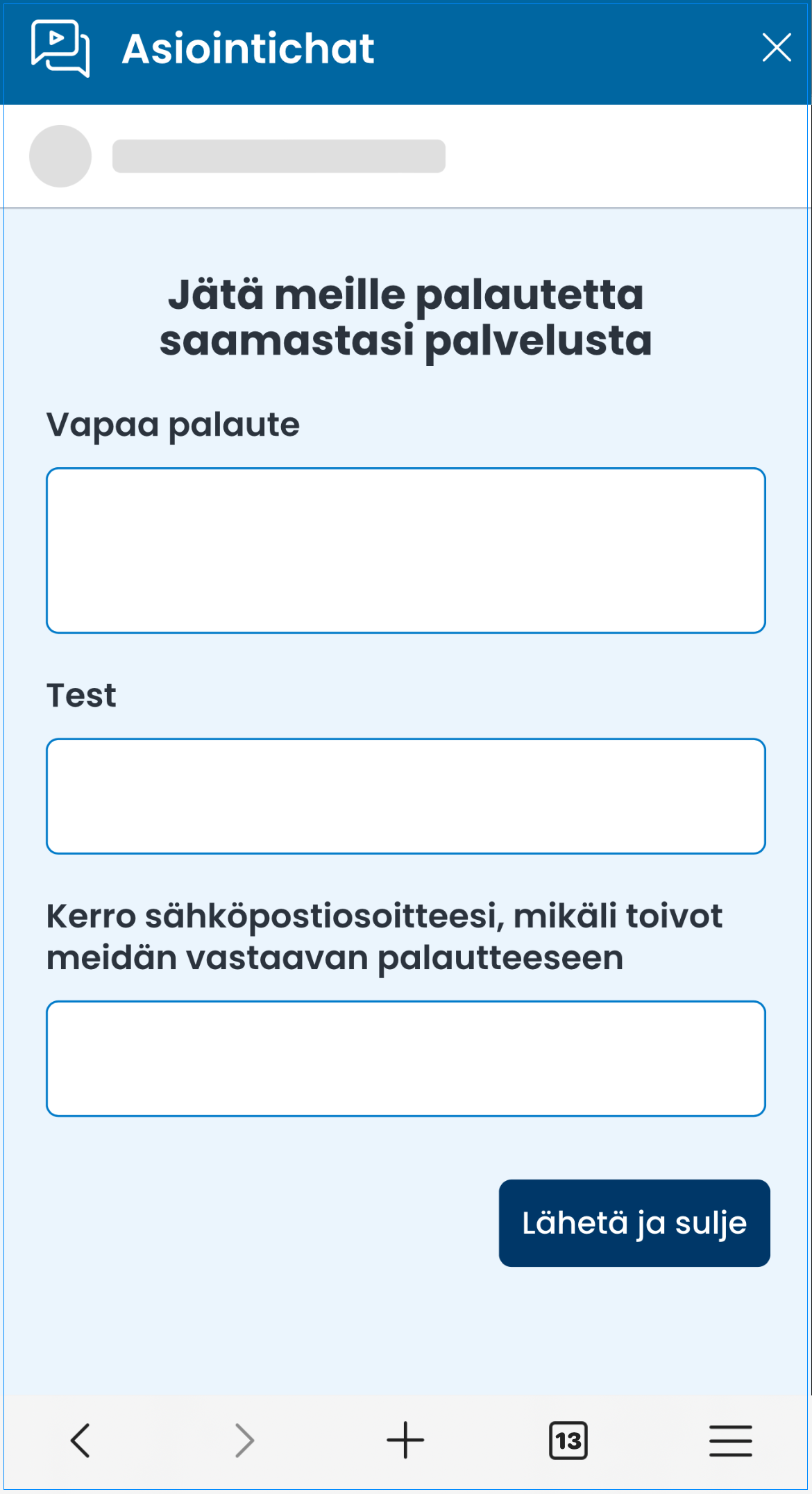
After the video meeting, the customer closes the conversation, rates it, and responds to a possible feedback survey.
### Video call support across different browsers and platforms
| Platform/operating system | Supported browsers |
| ------------------------------------- | -------------------------------------------------------------------------------- |
| Windows |
Google Chrome Mozilla Firefox Microsoft Edge (2020 Chromium-versio)
|
|
Mac OS
(Apple computers)
|
Google Chrome Mozilla Firefox Apple Safari
|
| Android |
Google Chrome Mozilla Firefox Microsoft Edge
|
| iOS (iPhone & iPad) | Apple Safari |
### Problems regarding video calls
#### Video meeting test
You can try our Video call test tool to check whether your hardware, web browser and connection is adequate for video calls. Test tool reports if something is wrong.
[**Ninchat - Video test tool**](https://ninchat.com/videotest)
#### **Instructions for problems**
**I cannot see video meeting start button (video camera icon).**
> Make sure that you are using a browser that supports video calls. Google Chrome or Mozilla Firefox is recommended.
> Video call can be started only in 1-on-1 conversations. Video cam icon will not show up in team channels.
>
> Additionally make sure video calls are enabled in your customer queue.
**"Video meeting starts but cuts out immediately, and will not restart. Connection cut off without errors or warnings. We can still use text chat. I have had video calls successfully before."**
> Video connection is established straight between agent and customer, so if connection is lost , the problem might be with network connection quality or load on either end. The situation can be improved at home as follows: a) connect the laptop to the wifi router with a cable, or b) if the connection is made via a mobile hotspot, place the mobile phone near a window, or c) be in the same room as the wifi router.
> Mobile app can also go to "sleep" after which the connection cuts off.
> For some reason video connection doesn't "get through". Usually this doesn't happen with mobile network, unless there is some privacy/security application in customer's device or other apps that block connection. This can also occur if they are using workplace network with a strict firewall.
> If you encounter a problem with a video call, refresh page for good measure (arrow circle icon next to address bar / F5 key).
> A firewall or anti-virus program can block webcam usage in some cases.
**"Camera or microphone use prevented: Although permission for device is granted, an error occurred at the system, browser or web page which prevented access to the device."**
> This error message is often caused by another messaging program (like Skype) reserving webcam or microphone. Try to close other programs/apps and restart your web browser after that. A security application might also disable webcam or microphone.
>
> Open video settings during a video call clicking icon and check which camera and microphone device is used.
> Some USB devices like Jabra may require changing USB port.
**"Camera or microphone use prevented: You may have denied usage of webcam or microphone from the web browser, or your device has prevented using the camera or microphone overall."**
> One must allow webcam and microphone in your web browser for every site. During first video call browser automatically asks for permission. If you have denied the permission, you can later allow it by clicking lock icon in the browser address bar.
**"In video call neither party can see other's image or hear sound. My webcam works as I can see my own image. Ninchat tells 'Video chat answered' but there is no connection."**
> In this kind of situation the reason is often that in either end (or both) there is a firewall or security application blocking the video connection. If you have successfully had video calls earlier, the problem lies most likely in customer's connection.
**Voice echoes during video call**
> Google Chrome browser has the best available echo cancellation. Preferably use this browser.
>
> Preferably use a headset. The sound can echo if neither party has headphones on.
> Try to lower your microphone volume. You can also ask the customer to lower their microphone volume if they have echoing problem and they can't use a headset.
>
> Some headsets with microphone can cause sound echoing. For instance some with Bluetooth headsets you hear you own voice when you select the same device as both microphone and speaker. In this case you can try and set the computer's own mic as microphone device, in video call settings.
>
> Restarting web browser may also help.
**Error message: "Video chat declined, they are busy" when trying to start a video call.**
> This error message is displayed if the recipient is already in a video call, or they have an earlier video call invite open and un-accepted. Ask recipient to close video call view, and invite them again to a video call.








 .
### Customer’s video call view
The image below shows what the video call looks like from the customer’s views.
.
### Customer’s video call view
The image below shows what the video call looks like from the customer’s views.