> For the complete documentation index, see [llms.txt](https://support.ninchat.com/ninchat-support/llms.txt). Markdown versions of documentation pages are available by appending `.md` to page URLs; this page is available as [Markdown](https://support.ninchat.com/ninchat-support/english-new/user-interface/customer-service-queues-and-conversations/opening-and-closing-queue.md).
# Opening and closing queue
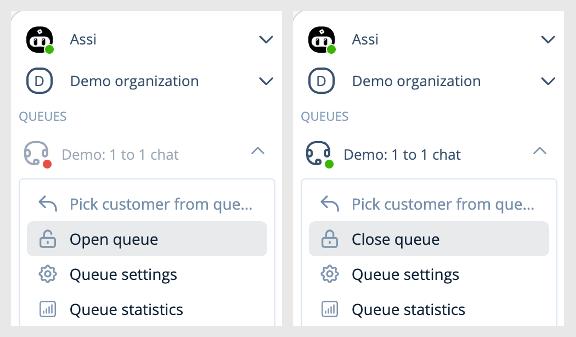
The queue can be opened and closed manually, or automatically by scheduling. An open queue is marked with a green circle in the Sidebar and queue view, while a closed queue is marked with a red circle
## Customer queue states
Customer queue is shown in Sidebar with
* Red dot - Queue is closed
* Green dot - Queue is open
* Blue notice colours - There are customers in queue
In the sidebar, next to the queue name, you can see a clock that indicates how long the (first) customer in the queue has been waiting.
The customer queue in the sidebar: Closed (red), open (green), customer in queue (blue).
### Queueing time
When there are customers in queue, you can see a timer next to the queue name indicating how long (the first) queueing customer has been waiting.
If queueing time has prolonged for more than one hour, the ∞ infinity symbol is shown instead of time.
### Opening and closing the queue
**To open the queue:** Click the arrow icon next to the queue name and select "Open queue" from the menu. Customers can now join the queue.
**To close the queue:** Click the arrow icon next to the queue name and select "Close queue" from the menu. Customers in the queue at the time of closing will remain in the queue until they are picked or they decide to close the chat/window.
Open and close the queue from the drop-down menu.
### **Scheduling a queue**
Read more about opening and closing a queue automatically by scheduling:
{% content-ref url="/pages/-Li7xMP\_5UU5Qw6q74LH" %}
[Queue schedule](/ninchat-support/english-new/user-interface/queue-management/queue-schedule.md)
{% endcontent-ref %}