> For the complete documentation index, see [llms.txt](https://support.ninchat.com/ninchat-support/llms.txt). Markdown versions of documentation pages are available by appending `.md` to page URLs; this page is available as [Markdown](https://support.ninchat.com/ninchat-support/english-new/user-interface/customer-service-queues-and-conversations/having-customer-conversation.md).

# Having a customer audience

### Start of a conversation <a href="#start-of-a-conversation" id="start-of-a-conversation"></a>

The conversation begins when you pick the customer from the queue. The customer is shown a conversation start message when the chat starts. The message can be edited in the site configuration or by requesting Ninchatt to make the change.

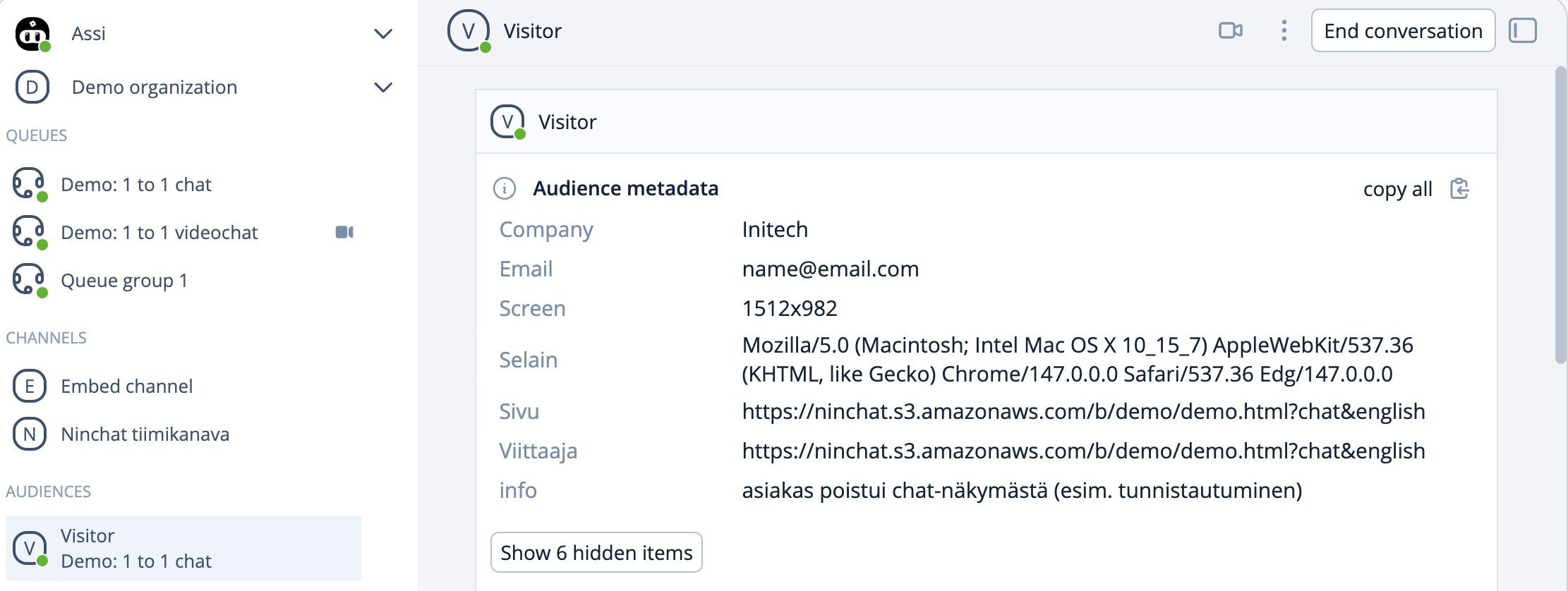
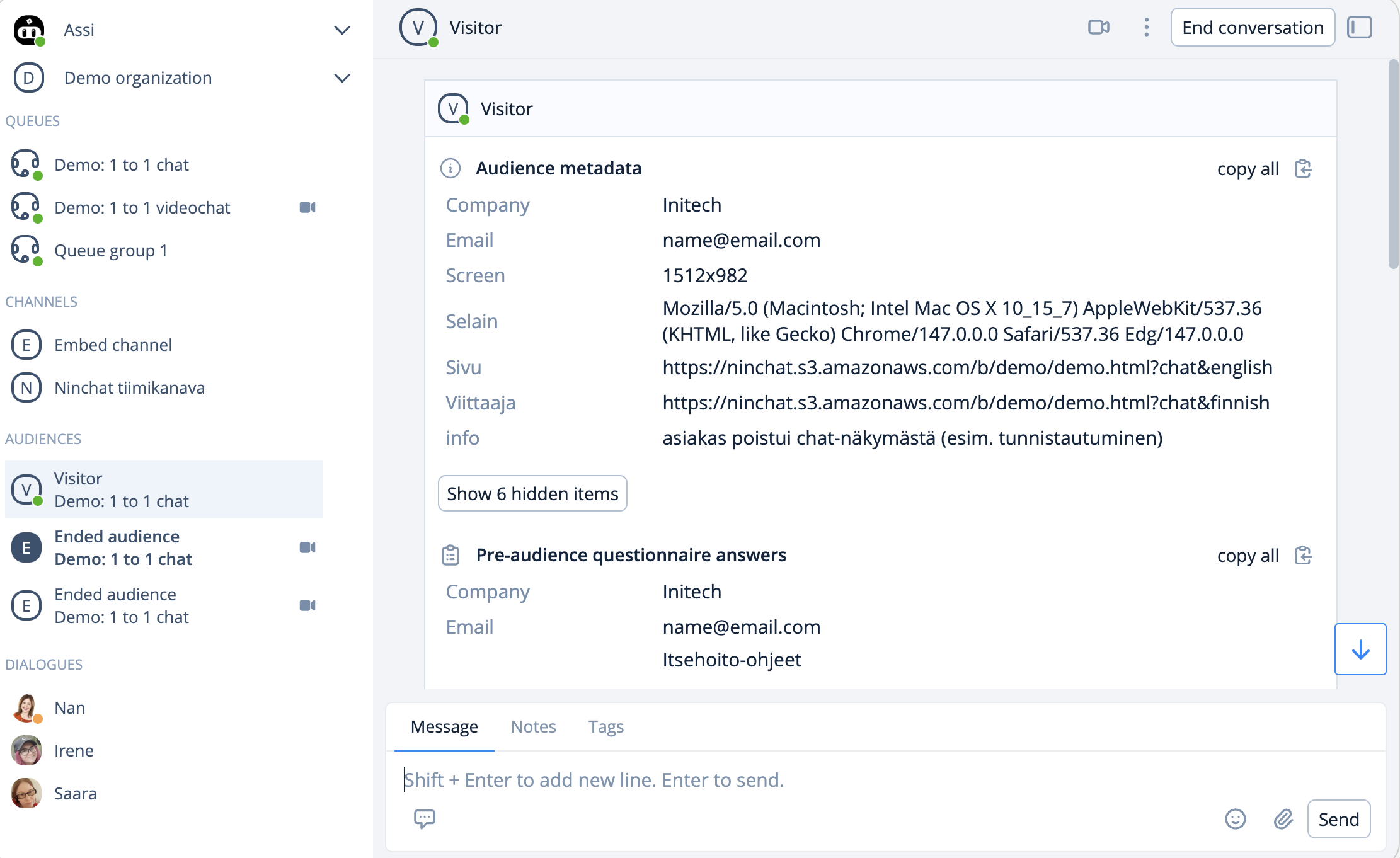
At the top of the conversation field, you can see the conversation metadata, and if there is a pre-audience questionnaire in the chat, you can see the customer’s responses below the metadata.

The pre-audience questionnaire start message appears in the conversation, as does the configured screen name.

<div data-with-frame="true"><figure><img src="https://498815019-files.gitbook.io/~/files/v0/b/gitbook-x-prod.appspot.com/o/spaces%2FIeqTSbNtGOeWTiig2G5l%2Fuploads%2Fgit-blob-e7dd8048180eeb25a02ee394f251e07eff63329f%2Fimage.png?alt=media" alt=""><figcaption></figcaption></figure></div>

### Entering a message

Type your message in the command line ("Enter your message"). Send it by clicking \[ENTER] key or the <img src="https://498815019-files.gitbook.io/~/files/v0/b/gitbook-x-prod.appspot.com/o/spaces%2FIeqTSbNtGOeWTiig2G5l%2Fuploads%2Fgit-blob-a4a15d4628f7fe3a603bfd5ecb23822360580be8%2Fimage.png?alt=media" alt="" data-size="line"> Send-icon.

If you need to add line breaks the your messages, you can do by clicking simultaneously \[SHIFT]+\[ENTER] keys. The command line will automatically adjust to longer messages.

### Video calls <a href="#video-calls" id="video-calls"></a>

Video call can be used in customer conversations when text messages and attachments are not enough. Read more in *Video calls* section

{% content-ref url="/pages/N87mNfEhb2X55GaFTAXy" %}
[Video meetings](/ninchat-support/english-new/user-interface/customer-service-queues-and-conversations/video-meetings.md)
{% endcontent-ref %}

### Pictures and files <a href="#pictures-and-files" id="pictures-and-files"></a>

The agent can send pictures and files to the customer, and vice versa if allowed in the queue settings.

By clicking the attachment icon (<img src="https://498815019-files.gitbook.io/~/files/v0/b/gitbook-x-prod.appspot.com/o/spaces%2FIeqTSbNtGOeWTiig2G5l%2Fuploads%2Fgit-blob-fcbb61c4272709aa4070ed9525c24c07fa6966e6%2Fimage.png?alt=media" alt="" data-size="line">), you can select the file to attach. The selected file can still be removed before you press "Send." After this, the attachment will appear in the customer's view.

There is no limit to the size or format of files to upload.

<div data-with-frame="true"><figure><img src="https://498815019-files.gitbook.io/~/files/v0/b/gitbook-x-prod.appspot.com/o/spaces%2FIeqTSbNtGOeWTiig2G5l%2Fuploads%2Fgit-blob-b4a8f2b41539cbc8bc92db8709f333e04f54e57f%2Fimage.png?alt=media" alt=""><figcaption><p>Your can view the attachment before pressing Send.</p></figcaption></figure></div>

### Customer metadata <a href="#customer-metadata" id="customer-metadata"></a>

Various metadata can be passed from the customer to expedite and facilitate the work of the agent. The data which may be communicated are:

* From the web page at the beginning of the chat and in real time during the chat
* Ninchat pre and post questionnaire responses
* Collected metadata such as the contents of the shopping cart

<div data-with-frame="true"><figure><img src="https://498815019-files.gitbook.io/~/files/v0/b/gitbook-x-prod.appspot.com/o/spaces%2FIeqTSbNtGOeWTiig2G5l%2Fuploads%2Fgit-blob-bd8cb3f556ce948456835e404b1de9900cb32d0b%2Fimage.png?alt=media" alt=""><figcaption><p>The main Audience metadata.</p></figcaption></figure></div>

<div data-with-frame="true"><figure><img src="https://498815019-files.gitbook.io/~/files/v0/b/gitbook-x-prod.appspot.com/o/spaces%2FIeqTSbNtGOeWTiig2G5l%2Fuploads%2Fgit-blob-3250c244baccfe8f2bba65f81ad08ea0df9d8dda%2Fimage.png?alt=media" alt=""><figcaption><p>By opening the modal for tha Audience metadata you will access the full metadata view.</p></figcaption></figure></div>

{% hint style="info" %}
Ask Ninchat staff for more information about uploading metadata.
{% endhint %}

### Questionnaire answers <a href="#questionnaire-answers" id="questionnaire-answers"></a>

The information from the pre questionnaire is shown below the metadatasection as "Pre audience questionnaire". This information will make the customer service quicker and easier.

If the pre-audience questionnaire includes entering a username and/or a message, they are also shown in the conversation, in addition to pre-audience questionnaire answers section.

<div data-with-frame="true"><figure><img src="https://498815019-files.gitbook.io/~/files/v0/b/gitbook-x-prod.appspot.com/o/spaces%2FIeqTSbNtGOeWTiig2G5l%2Fuploads%2Fgit-blob-a69dcb99474b1f71a5b4bc825a19b39993e00252%2Fimage.png?alt=media" alt=""><figcaption><p>The Pre-audience questionnaire answers section can be found below the Audience metadata.</p></figcaption></figure></div>

### Use of the canned message

You can find predefined responses by clicking the icon located below the text field. You can select a message by clicking it, and it will appear in the text field. If necessary, you can edit the text or send it immediately.

You can find predefined responses by clicking the icon located below the text field <img src="https://498815019-files.gitbook.io/~/files/v0/b/gitbook-x-prod.appspot.com/o/spaces%2FIeqTSbNtGOeWTiig2G5l%2Fuploads%2Fgit-blob-ab72b6eb0b7794737fb7784fdf2adf7367dda7ad%2Fvalmisvastaukse.png?alt=media" alt="" data-size="line">. You can select a message by clicking it, and it will appear in the text field. If necessary, you can edit the text before sending the message.
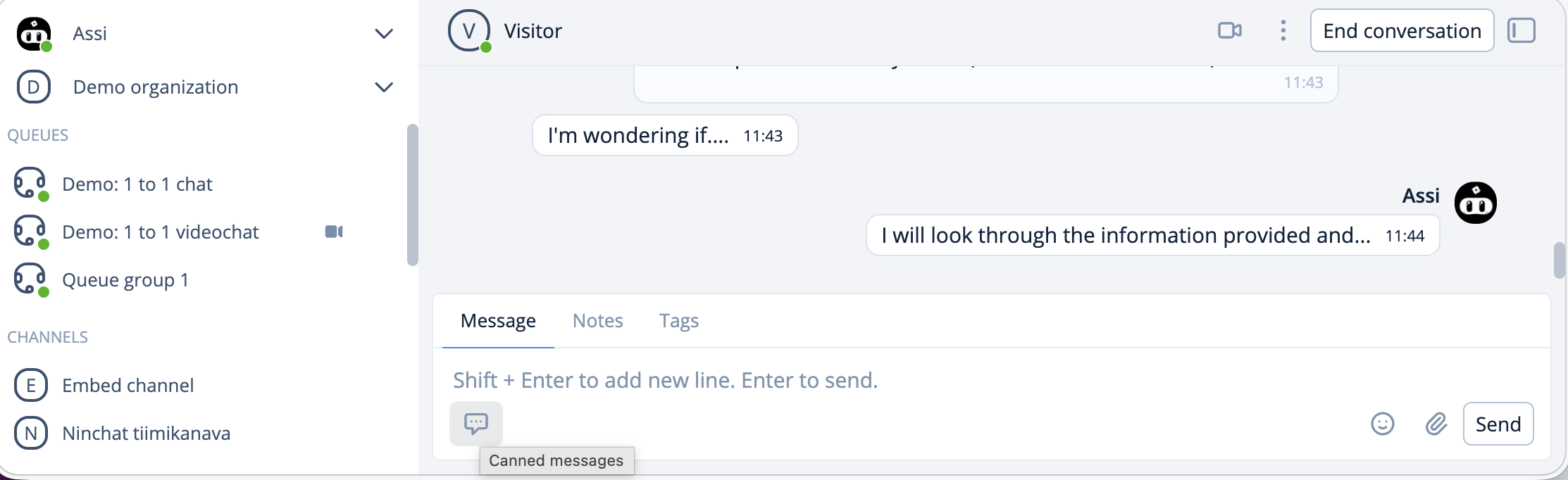
<div data-with-frame="true"><figure><img src="https://498815019-files.gitbook.io/~/files/v0/b/gitbook-x-prod.appspot.com/o/spaces%2FIeqTSbNtGOeWTiig2G5l%2Fuploads%2Fgit-blob-5ede74030d76c7da5d35dfe8ba77941d37ab8224%2Fimage.png?alt=media" alt=""><figcaption><p>Canned messages icon in the bottom bar of the text field.</p></figcaption></figure></div>

#### Access canned messages by using the keyboard

Canned messages can also be accessed by using your keyboard to type in the text field. Canned messages also work from the keyboard in team channels and private conversations.

By typing the slash \[/] and the keyword of a canned message you want to use and pressing the \[Spacebar] key, the canned message will appear in the text field.

Example: You have set up a canned message: open (keyword): We are open on weekdays from 9 am to 5 pm (canned message).

<table><thead><tr><th width="191.3046875">Keyword</th><th>Canned message</th></tr></thead><tbody><tr><td>open</td><td>We are open on weekdays from 9 am to 5 pm.</td></tr></tbody></table>

```
/open[Spacebar] --> We are open on weekdays from 9 am to 5 pm.
```

### Creating and editing canned messages

Canned messages can be personal and organization shared canned messages. Personal canned messages can be created in your user settings. See instructions via the link:

{% content-ref url="/pages/-LNjHfdM4w\_wBuy7vMcu" %}
[User settings and profile](/ninchat-support/english-new/organization-member/user-account/user-settings.md)
{% endcontent-ref %}

### Organization shared canned messages

In the organization settings, under the Organization shared canned messages section, you can set predefined responses that apply organization-wide per queue.

To create an organization-wide predefined response, click the "Add New" button and enter a keyword for finding the response, along with the message itself. Don’t forget to save. The predefined response will now be available to all organization members.

<div data-with-frame="true"><figure><img src="https://498815019-files.gitbook.io/~/files/v0/b/gitbook-x-prod.appspot.com/o/spaces%2FIeqTSbNtGOeWTiig2G5l%2Fuploads%2Fgit-blob-b496cba0bcf20e830595d7a19e9caad1f899b26d%2Fimage.png?alt=media" alt=""><figcaption><p>Adding an organization wide canned message from the organizations settings.</p></figcaption></figure></div>

## Tags <a href="#tags" id="tags"></a>

Customer service agents can tag customer conversations with tags according to the topic or nature of the conversations, for example, "sales", "customership", "technical problem", etc. Adding tags makes it easier to record and later review the conversations.

Conversations can also be tagged automatically e.g. based on questionnaire answers. So it is possible the conversation has added tags right in the beginning.

Used tags are defined by your organization operator.

### Tag a conversation <a href="#tag-a-conversation" id="tag-a-conversation"></a>

An agent can add a tag by choosing from the list of tags in the chat features. Added tags appear and are stored in the metadata in the beginning of the conversation.

<div data-with-frame="true"><figure><img src="https://498815019-files.gitbook.io/~/files/v0/b/gitbook-x-prod.appspot.com/o/spaces%2FIeqTSbNtGOeWTiig2G5l%2Fuploads%2Fgit-blob-1b623907142f9f54fc5e10889174deb9b623e307%2Fimage.png?alt=media" alt=""><figcaption><p>The tags can be found in the header of the text area.</p></figcaption></figure></div>

#### Create and edit tags <a href="#create-and-edit-tags" id="create-and-edit-tags"></a>

Tags are organization specific and can be created and edited by your organization operators. To create and edit tags, see page *Tags*:

{% content-ref url="/pages/-LaUmzCfxoWnzhFKbsCY" %}
[Tags](/ninchat-support/english-new/user-interface/organization/tags.md)
{% endcontent-ref %}

### Notes <a href="#notes" id="notes"></a>

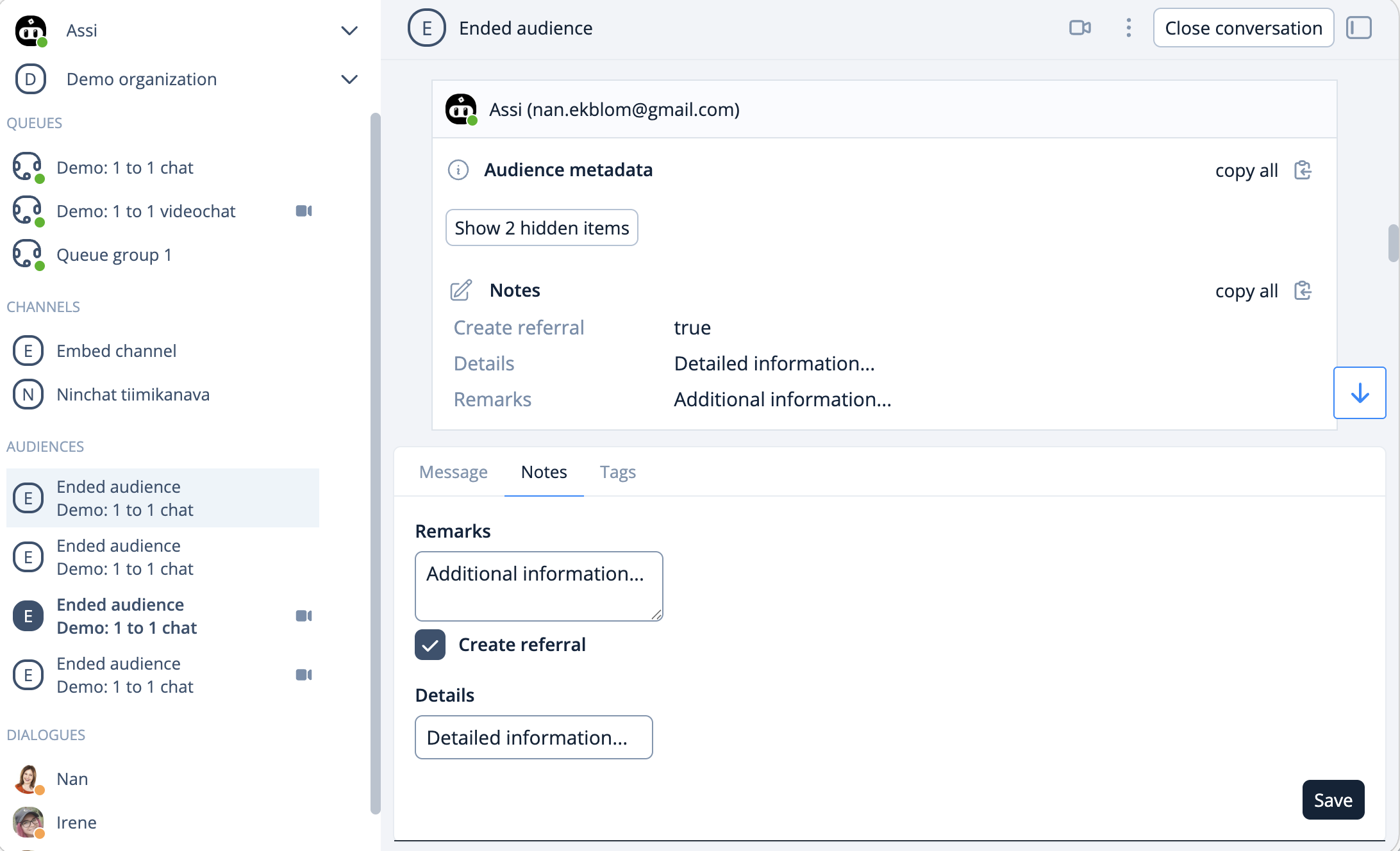
Notes is an advanced option that allows you to create notes and entries about a customer conversation. Notes made by a customer service representative are stored in the conversation history. Notes can also be used to export data to the customer's own information system.

Notes can be added via the Notes tab above the message field (if notes are enabled). Remember to click Save. Saved notes are added to the metadata at the beginning of the conversation.

<div data-with-frame="true"><figure><img src="https://498815019-files.gitbook.io/~/files/v0/b/gitbook-x-prod.appspot.com/o/spaces%2FIeqTSbNtGOeWTiig2G5l%2Fuploads%2Fgit-blob-fd65afc9ece1ad15d463d79b72db5747e8d3049e%2Fimage.png?alt=media" alt=""><figcaption><p>Adding a note to an audience.</p></figcaption></figure></div>

## Real-Time monitoring of conversation

You can review conversation history from the Queue activity view as follows: first, select the queue and click on the name to open the activity view. In this view, you will see all the conversations in the queue. After the member's name, there is a document icon <img src="https://498815019-files.gitbook.io/~/files/v0/b/gitbook-x-prod.appspot.com/o/spaces%2FIeqTSbNtGOeWTiig2G5l%2Fuploads%2Fgit-blob-b395200799bbe6fcc0d5da749d01970d8799d3a8%2Fimage.png?alt=media" alt="" data-size="line">, which you can click to open the conversation. Note that operator rights are required for this action.

<div data-with-frame="true"><figure><img src="https://498815019-files.gitbook.io/~/files/v0/b/gitbook-x-prod.appspot.com/o/spaces%2FIeqTSbNtGOeWTiig2G5l%2Fuploads%2Fgit-blob-da4e85a9b4ec70f9c3a485623aa4b16b1841b1a2%2Fimage.png?alt=media" alt=""><figcaption><p>Open a specific conversation from the incon on the right in the queue activity view.</p></figcaption></figure></div>

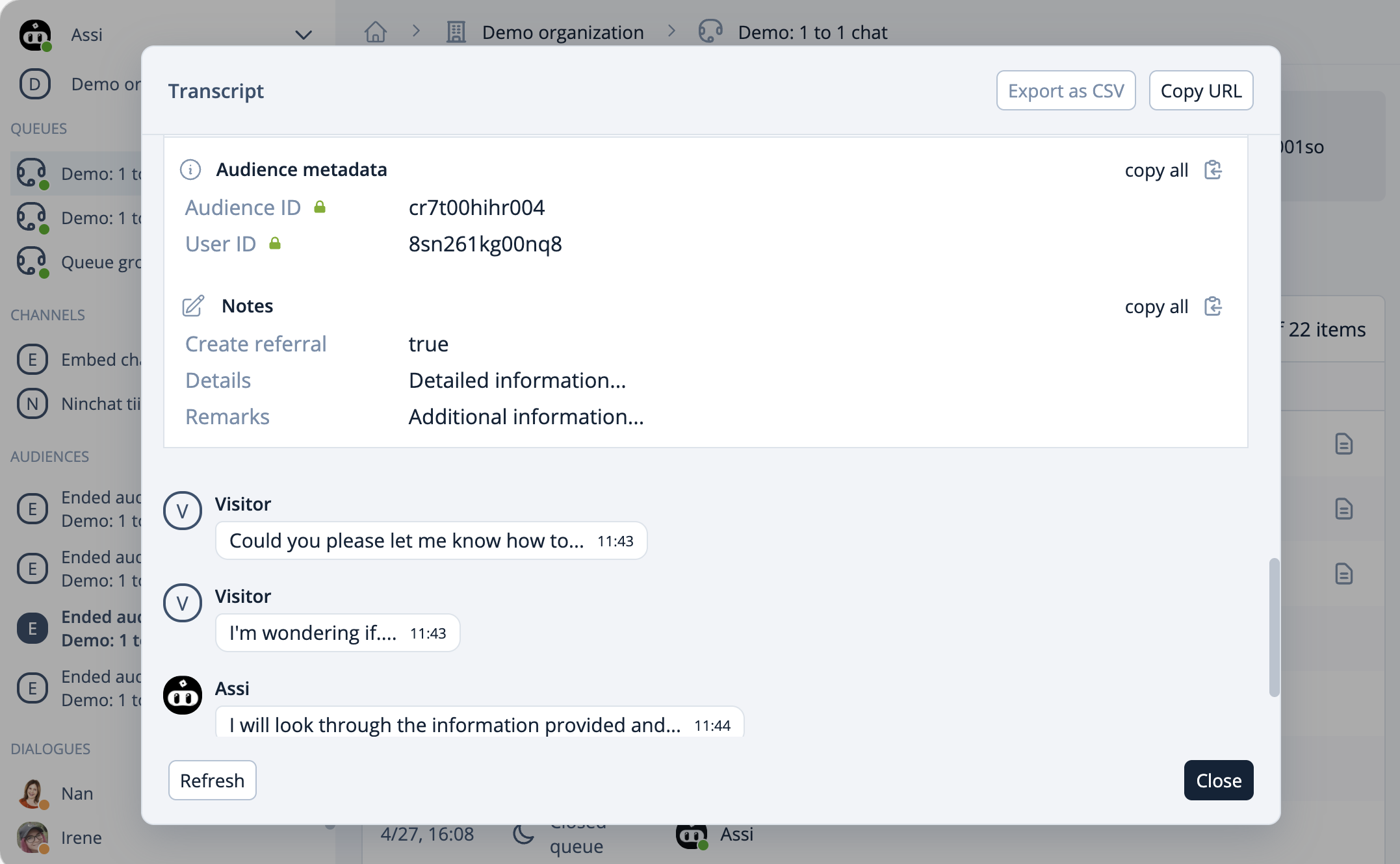
During a customer conversation, you can view all the content of the specific audience, as well as see the conversation in real-time. The customer conversation updates when you click the Refresh button.

<div data-with-frame="true"><figure><img src="https://498815019-files.gitbook.io/~/files/v0/b/gitbook-x-prod.appspot.com/o/spaces%2FIeqTSbNtGOeWTiig2G5l%2Fuploads%2Fgit-blob-bfb195521feb2ac57eeec4501dad0d312ca8e7ac%2Fimage.png?alt=media" alt=""><figcaption></figcaption></figure></div>