> For the complete documentation index, see [llms.txt](https://support.ninchat.com/ninchat-support/llms.txt). Markdown versions of documentation pages are available by appending `.md` to page URLs; this page is available as [Markdown](https://support.ninchat.com/ninchat-support/english-new/user-interface/customer-service-queues-and-conversations/audience-ticketing.md).

# Audience ticketing

Registered contacts can be assigned as Audience ticketing. New and unprocessed tickets are displayed highlighted.

To enable Audience ticketing, go to the queue settings under Advanced Settings. Remember to save the settings.

<div data-with-frame="true"><figure><img src="https://498815019-files.gitbook.io/~/files/v0/b/gitbook-x-prod.appspot.com/o/spaces%2FIeqTSbNtGOeWTiig2G5l%2Fuploads%2Fgit-blob-e34eb3d99dd0c9153c947e37cf0e7f0974f0f88a%2Fimage.png?alt=media" alt=""><figcaption><p>The Audience ticketing setting can be found in the queue Advanced settings.</p></figcaption></figure></div>

The notification in the left sidebar and the ticket icon indicate an audience ticket. By navigating to the queue activity view, you can view a list of saved contacts. Clicking on a registered contact allows you to review its details and assign the ticket to yourself.

<div data-with-frame="true"><figure><img src="https://498815019-files.gitbook.io/~/files/v0/b/gitbook-x-prod.appspot.com/o/spaces%2FIeqTSbNtGOeWTiig2G5l%2Fuploads%2Fgit-blob-fd7a75bf5b5c134f8e02b1a0f7b536d2573c9dc9%2Fimage.png?alt=media" alt=""><figcaption><p>New ticket in the queue.</p></figcaption></figure></div>

<div data-with-frame="true"><figure><img src="https://498815019-files.gitbook.io/~/files/v0/b/gitbook-x-prod.appspot.com/o/spaces%2FIeqTSbNtGOeWTiig2G5l%2Fuploads%2Fgit-blob-f7d986bbdca8a4fae922c21a296bddeb410f82dc%2Fimage.png?alt=media" alt=""><figcaption><p>You can view the tickets from the queue activity log.</p></figcaption></figure></div>

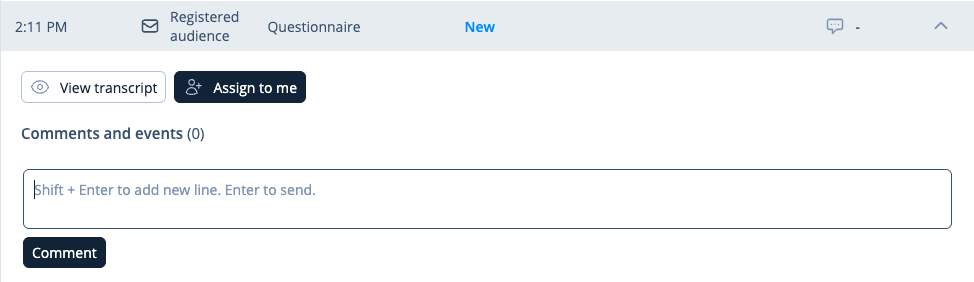
By clicking on a registered contact, a view opens where you can choose whether to review the content, assign the ticket to yourself, or add a comment.

## Assigning tickets in order

The queue settings include **Assign to oldest ticket**. When this option is enabled, tickets are assigned automatically from oldest to newest, and individual assignment from the list is not available.

When automatic ordering is not enabled, the agent can assign the next or oldest ticket when those actions are available in the queue. You can add comments to a ticket. Removing a ticket from your own task list may require a reason.

<div data-with-frame="true"><figure><img src="https://498815019-files.gitbook.io/~/files/v0/b/gitbook-x-prod.appspot.com/o/spaces%2FIeqTSbNtGOeWTiig2G5l%2Fuploads%2Fgit-blob-275c5527dd66c39e683c392a88ab66dbc8c36615%2Fimage.png?alt=media" alt=""><figcaption><p>Selection view of a new, unassigned, opened ticket.</p></figcaption></figure></div>

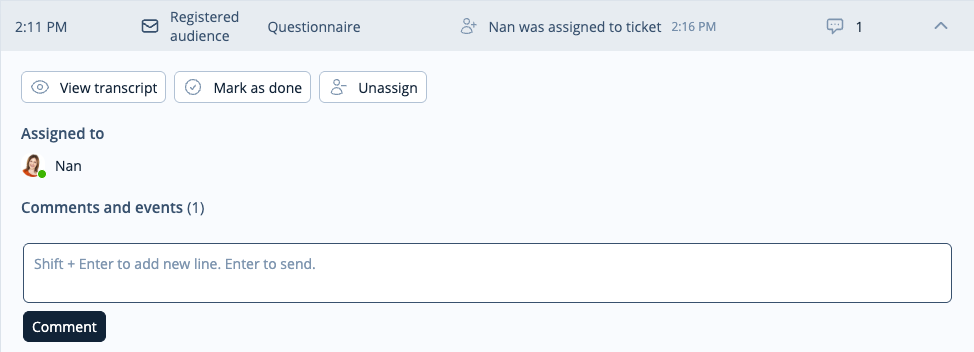
When you assign the ticket to yourself you have the options to mark it as completed, or remove the task from your list.

<div data-with-frame="true"><figure><img src="https://498815019-files.gitbook.io/~/files/v0/b/gitbook-x-prod.appspot.com/o/spaces%2FIeqTSbNtGOeWTiig2G5l%2Fuploads%2Fgit-blob-8077cd8c925e5f30916e9587b856ba5f35453a03%2Fimage.png?alt=media" alt=""><figcaption><p>View of a ticket assigned to you.</p></figcaption></figure></div>

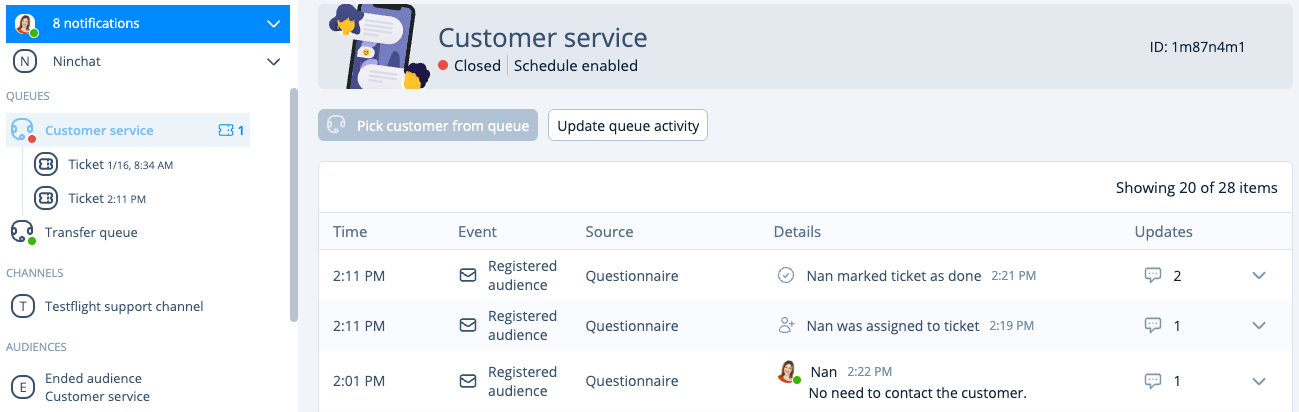
In the queue activity view you will see the status of each ticket. When you close a ticket, it will be removed from the left-hand bar.

<div data-with-frame="true"><figure><img src="https://498815019-files.gitbook.io/~/files/v0/b/gitbook-x-prod.appspot.com/o/spaces%2FIeqTSbNtGOeWTiig2G5l%2Fuploads%2Fgit-blob-beff5cb92e92786c403887b16555878ae0e29e31%2Fimage.png?alt=media" alt=""><figcaption><p>In the queue activity log you can see the state of each ticket.</p></figcaption></figure></div>