> For the complete documentation index, see [llms.txt](https://support.ninchat.com/ninchat-support/llms.txt). Markdown versions of documentation pages are available by appending `.md` to page URLs; this page is available as [Markdown](https://support.ninchat.com/ninchat-support/english-new/public-group-discussions/organizing-group-discussion.md).
# Organizing a group discussion
Instructions for organizing a public group discussion
## Before the chat starts
### Inviting experts and other participants to the chat
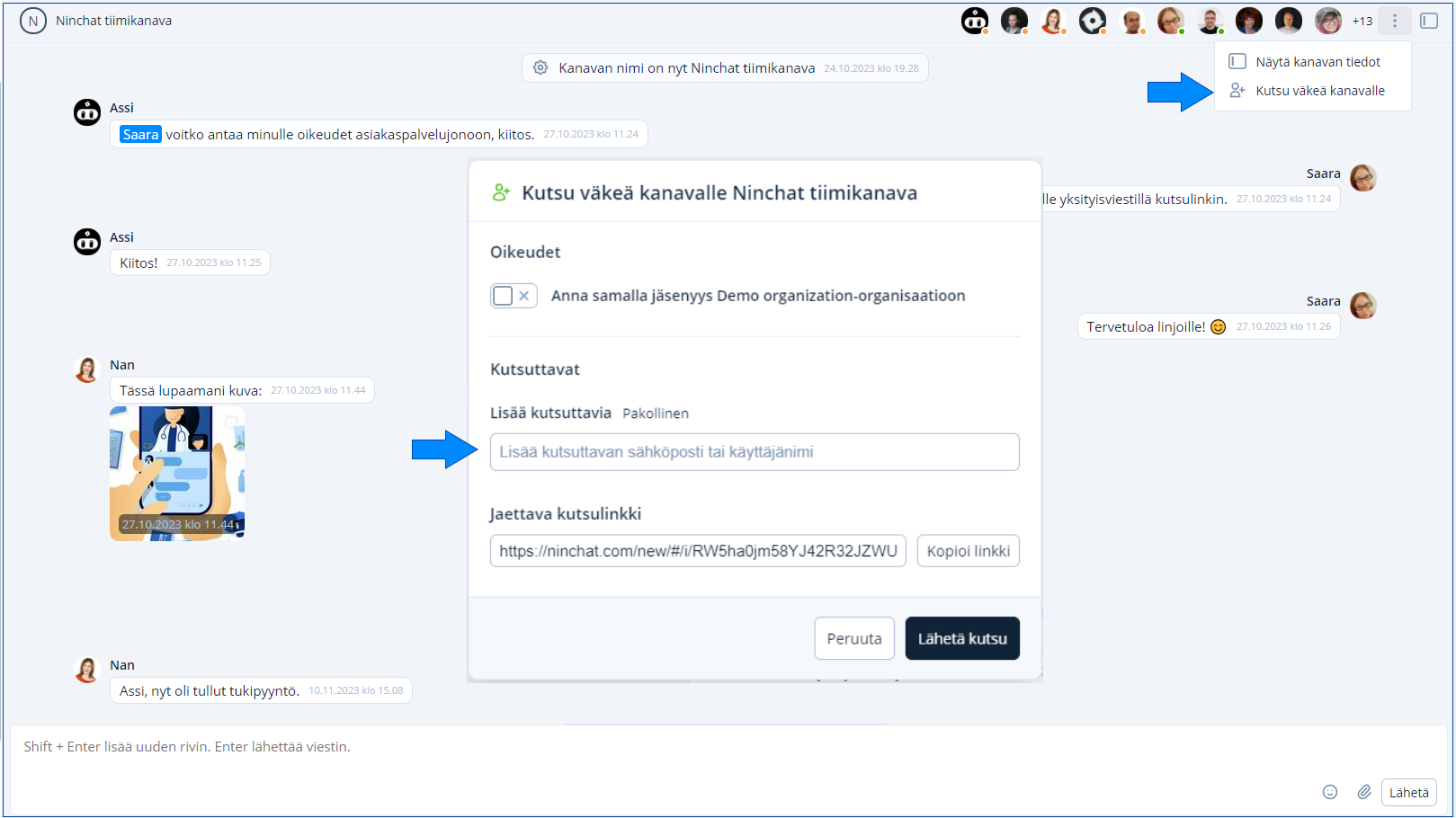
* **Make sure** you are in the desired group discussion channel in Ninchat.
* **Click** the three-dot menu in the top-right corner of the channel, next to the channel members. **Select** "Invite people to channel". In the window that opens, select a person from the list or enter their email address under "Add invitees", then **click** "Send invitation". If needed, grant the person organization privileges by selecting "Privileges". You can also **invite** someone using a link by clicking "Copy link" and sending the link through the channel of your choice.
* If you cannot see "Invite people to channel", you do not have channel operator rights.
Näin lähetät kutsun kanavalle.
Read more in the following instructions:
{% content-ref url="/pages/-LP6IxD4iAmnoq1--hGK" %}
[Inviting new members to channel](/ninchat-support/english-new/user-interface/team-channels/invite-to-channel.md)
{% endcontent-ref %}
### Channel operator and moderator rights
Channel operators and moderators maintain the discussion channel. Members with these rights are also clearly identified in the public discussion.
Keep channel operator rights enabled for yourself or designated staff. They allow you to invite new people and grant moderator and operator rights.
| Member list indicator | Meaning |
| ---------------------------------------------------------------------------------------------------------------------------------------------------------------------------------------------------------------------------------------------------- | --------------------------------------------------------------------------------------------------------------------------------- |
| Filled star |
Channel operator:
can manage channel settings and invite members
(a different role from organization operator)
|
| Outlined star |
Channel moderator:
can moderate messages and remove members
|
#### Granting channel operator rights
Click the desired person's name in the channel member list and select *"Give operator rights"* from the menu.\
Grant moderator rights to experts, other participants, and anyone responsible for moderating the discussion.
#### Granting moderator rights
Click the desired person's name in the channel member list and select *"Give moderator rights"* from the menu.
### Moderator user settings
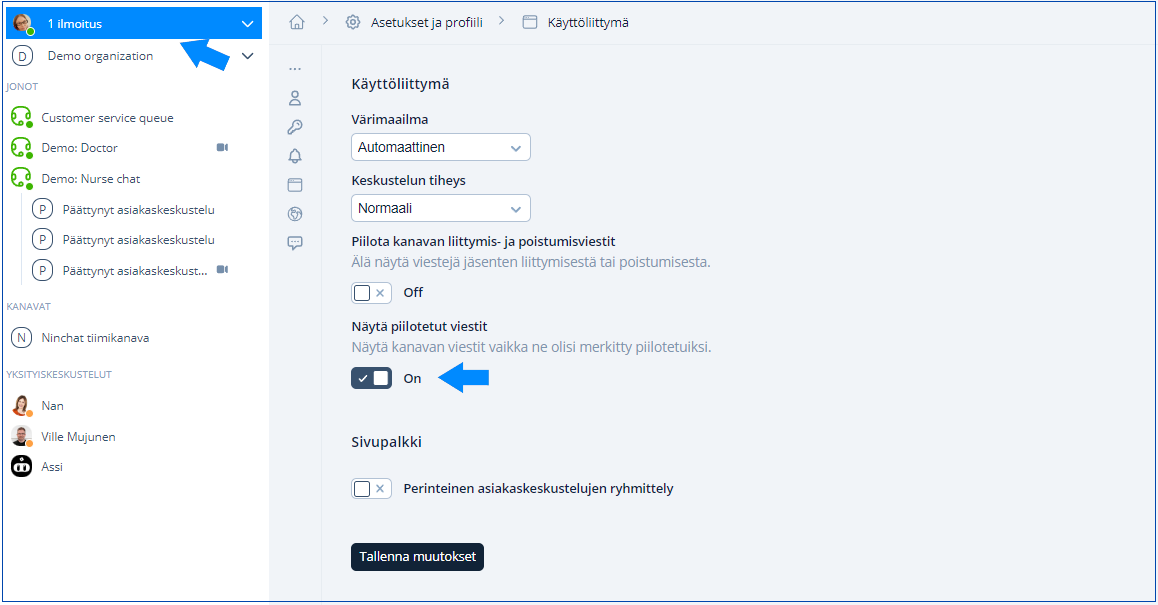
**Important!** It is useful to show messages hidden by moderators to the moderator themselves, so they can still edit them if necessary. Do this as follows:
1. Go to user settings by clicking your username in the conversation list and selecting "Settings and profile".
2. Select "User interface" in the settings.
3. Under "Show hidden messages", select the checkbox so that it is set to On.
4. Save your changes.
Piilotettujen viestien näkyminen moderaattorille.
## Opening the group discussion
* Make sure you are in the desired group discussion channel in Ninchat.
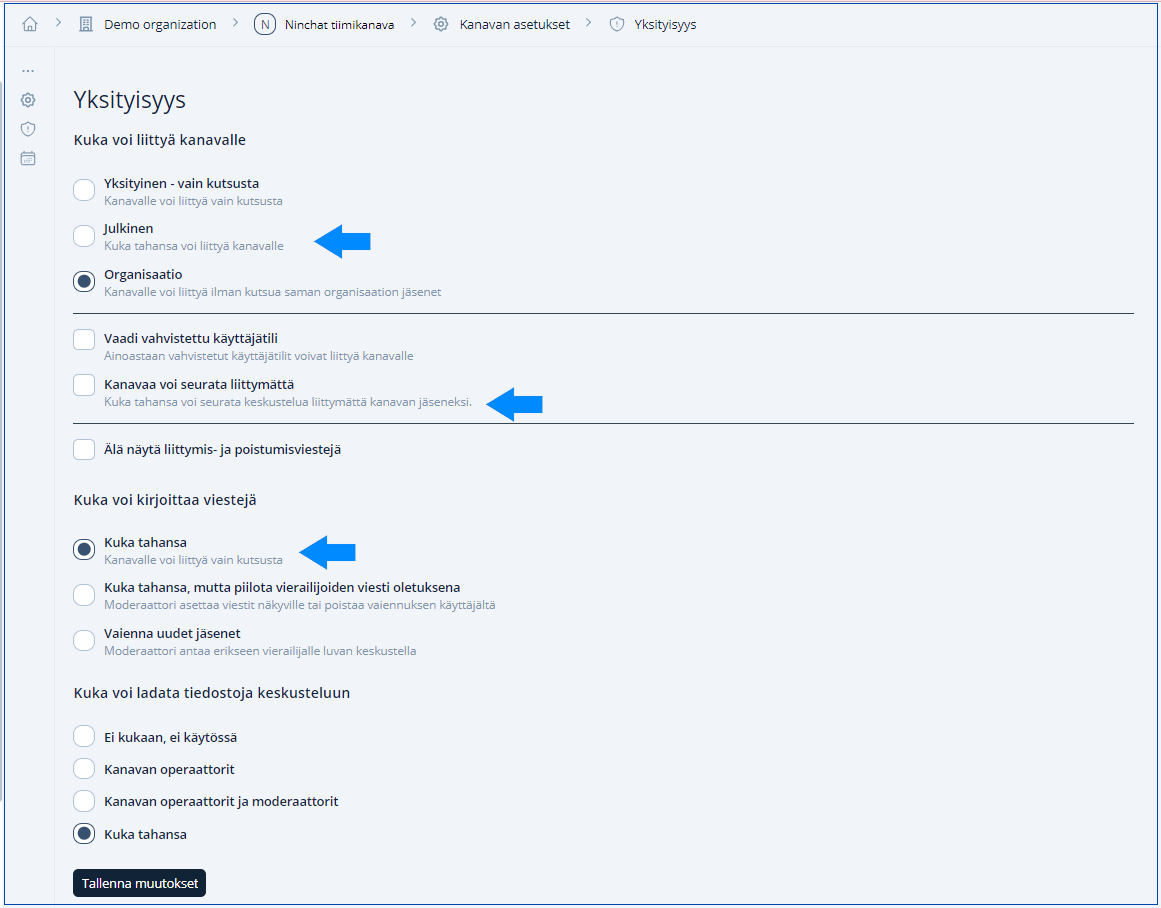
* Open the menu using the arrow next to the channel name and select "Channel settings", then select "Privacy".
* Make two changes:
* Under "Who can join channel", select "Public". This allows anyone to join the channel. Then select "Channel is followable".
* Under "Who can write messages", select "Everybody". If needed, you can also select the option that hides visitors' messages by default or the option that silences new members.
* Click "Save changes" at the bottom of the page.
Make these changes when opening the group discussion.
## Showing participants in the channel
Visitors do not appear in the channel member list until they participate in the discussion by writing their first message and entering a name or nickname.\
This happens when the channel's **Who can join channel** setting is **Public**.
If you want silent followers to appear in the member list as soon as they enter the discussion, set *Who can read messages* to *Channel members, history shown from \[date and time]*. Visitors will then appear immediately as anonymous members and receive a name after writing their first comment.
| Who can read messages setting | |
| -------------------------------------------------------- | --------------------------------------------------------------------------------------------- |
| *Everybody may follow anonymously from \[date and time]* | Visitors appear in the member list only after writing their first comment |
| *Channel members, history shown from \[date and time]* | Visitors appear immediately as anonymous members and receive a name after their first comment |
## Closing the group discussion
You can close the discussion by selecting "Channel is closed" in the settings. New messages can no longer be written, and the configured channel-closed message appears in the message field. You can change this message in the channel settings.
{% content-ref url="/pages/-LOxHCjk03sLbGfPQEEM" %}
[Channel settings](/ninchat-support/english-new/user-interface/team-channels/channel-settings.md)
{% endcontent-ref %}
#### Showing the channel-closed message
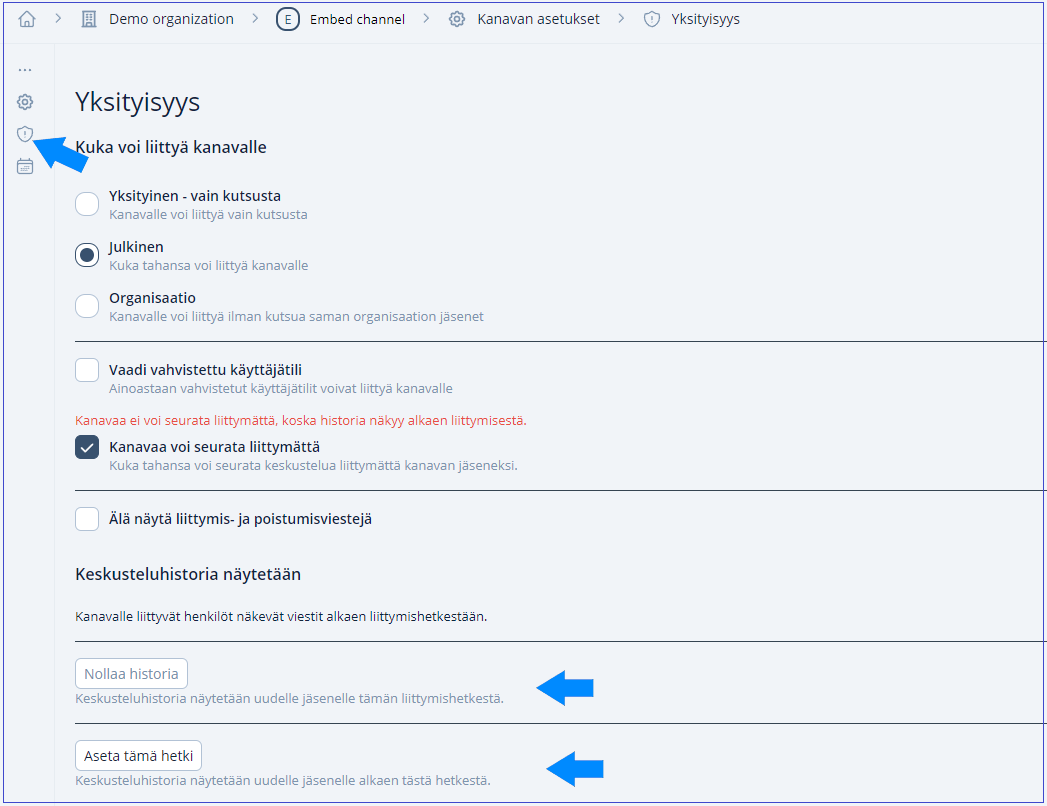
For the offline message to be visible to everyone, set the channel's *Who can read messages* setting to *"Everybody may follow anonymously, from \[date/time]"*. See the next section for information about showing and hiding message history.
## Hiding message history
If you want to hide a completed discussion from new visitors after the group discussion, follow these steps (follow the instructions carefully :wink:):
1. Make sure you are in the desired group discussion channel in Ninchat and open Channel settings by clicking the channel name and selecting "Channel settings".
2. Under "Who can read messages", select "Channel members, history available since join only".
3. Save your changes.
4. Under "Who can read messages" again, change the selection to "Everybody may follow anonymously".
5. Save your changes.
6. Close the settings.
The channel conversation history will not be shown to visitors who enter the page after this.
## Hiding the channel window from a website
It is possible to hide an embedded channel from a website when the channel is closed. Contact Ninchat staff for more information.
 Filled star |
  Outlined star |