
> For the complete documentation index, see [llms.txt](https://support.ninchat.com/ninchat-support/llms.txt). Markdown versions of documentation pages are available by appending `.md` to page URLs; this page is available as [Markdown](https://support.ninchat.com/ninchat-support/english-new/organization-member/getting-started.md).

# Getting Started

## Starting as new member <a href="#starting-as-new-agent" id="starting-as-new-agent"></a>

Here are brief instructions on how to get started as a new member. For more detailed guidance, please see the instruction pages available through the links. These instructions are intended for new members whose company or organization already has an existing Ninchat organization.

## Creating an account

{% stepper %}
{% step %}

### Join Ninchat via invitation link sent to you.

You have received an invitation link via email. Use Chrome and Firefox browsers only.

Open the invitation link by clicking the *Accept invitation* -button in your email messag

![Kutsuviesti sähköpostissa](https://498815019-files.gitbook.io/~/files/v0/b/gitbook-x-prod.appspot.com/o/spaces%2FIeqTSbNtGOeWTiig2G5l%2Fuploads%2Fgit-blob-ff3fcb657ede7fe8846eb240c9a2d073258401b1%2FKutsu%20email%20kanavalle.png?alt=media)

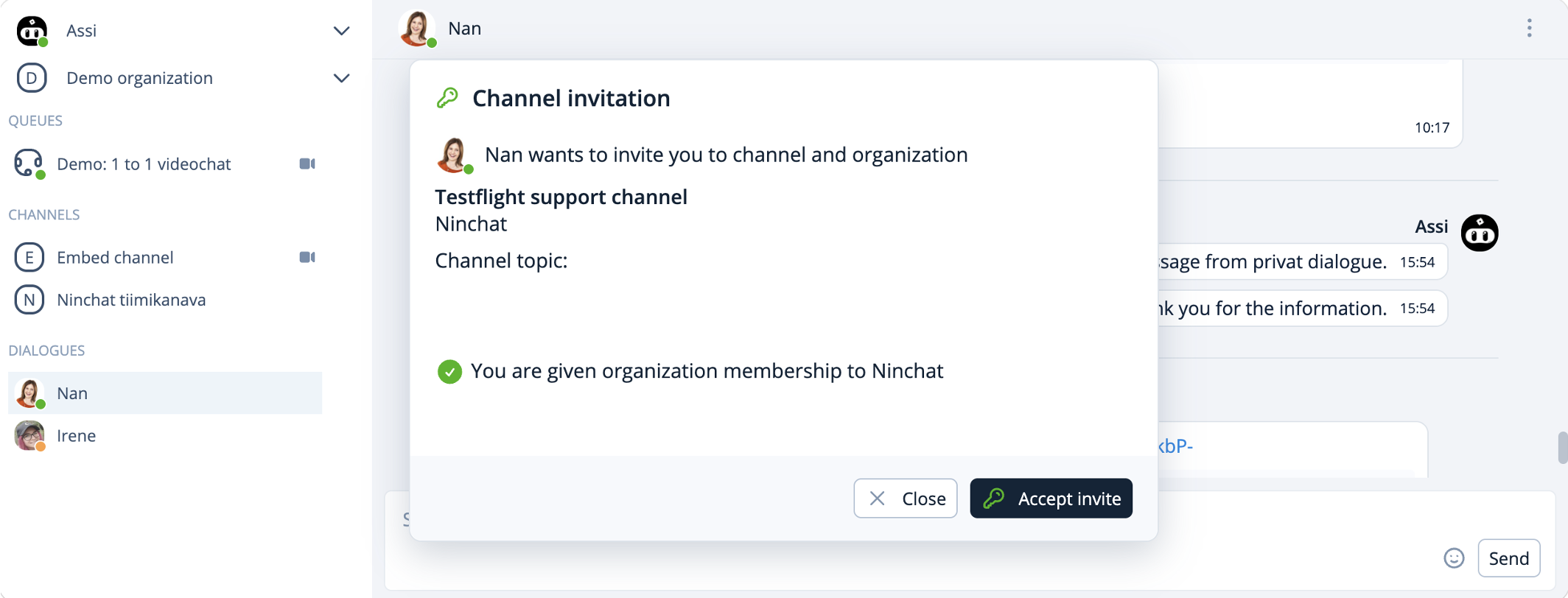
After opening the link click on the *Accept invite* -button.

<div data-with-frame="true"><figure><img src="https://498815019-files.gitbook.io/~/files/v0/b/gitbook-x-prod.appspot.com/o/spaces%2FIeqTSbNtGOeWTiig2G5l%2Fuploads%2Fgit-blob-787b4a088fadfad8eae4cb5628e20f5d29c244ad%2Fimage.png?alt=media" alt=""><figcaption></figcaption></figure></div>

{% hint style="info" %} <mark style="color:$primary;">If your organization uses AD authentication for Ninchat, accepting the invitation will direct you to sign in with your AD credentials.</mark>
{% endhint %}

For more information, see the page *Ninchat invitation:*

{% content-ref url="/pages/-LP6Q12K1-ME069hnTW8" %}
[Ninchat invitation](/ninchat-support/english-new/organization-member/user-account/accept-ninchat-invitation.md)
{% endcontent-ref %}
{% endstep %}

{% step %}

### Create your account

{% hint style="info" %} <mark style="color:$primary;">Note! If you already have an account, sign in and skip this step.</mark>
{% endhint %}

Once you have accepted the invitation create your own Ninchat account (if you already have one, sign in).

Enter required information:

* Name: your name
* Email: your email address (pay attention to capitalization)
* Password: create a safe password for your account

Click on *Create account* to proceed.

<figure><img src="https://498815019-files.gitbook.io/~/files/v0/b/gitbook-x-prod.appspot.com/o/spaces%2FIeqTSbNtGOeWTiig2G5l%2Fuploads%2Fgit-blob-4830e9bcfd7fd76738a9682c3f34d502dec02b36%2Fimage.png?alt=media" alt="" width="375"><figcaption></figcaption></figure>

More info on page *Create new account*:

{% content-ref url="/pages/-LNipYcHRaYj7O6yqTdD" %}
[Create new account](/ninchat-support/english-new/organization-member/user-account/create-account.md)
{% endcontent-ref %}
{% endstep %}

{% step %}

### Permission to show notifications

When you sign in to Ninchat the browser asks to give ninchat.com a permission to show notifications. Allow notifications. Now you will receive notifications of new messages etc.

![Ilmoitusten salliminen eri web-selainohjelmissa](https://498815019-files.gitbook.io/~/files/v0/b/gitbook-x-prod.appspot.com/o/spaces%2FIeqTSbNtGOeWTiig2G5l%2Fuploads%2Fgit-blob-3d1658ec73c718ce73f99ab1335dd31d1bb29b34%2FIlmoitusten%20salliminen%20web-selaimissa.png?alt=media)
{% endstep %}

{% step %}

### Verify your account

You still need to verify your account. In your email you will receive a message that contains a link you need to click on to verify your account.

Use the verification link only once.

![Vahvistusviesti sähköpostissa](https://498815019-files.gitbook.io/~/files/v0/b/gitbook-x-prod.appspot.com/o/spaces%2FIeqTSbNtGOeWTiig2G5l%2Fuploads%2Fgit-blob-e81b8bbcd9afc0dc0a68c5ab073625121c5f7d98%2FPlease%20verify%20your%20email.png?alt=media)

Sign in at: [**https://ninchat.com/new**](https://ninchat.com/new)
{% endstep %}
{% endstepper %}

## User settings <a href="#user-settings" id="user-settings"></a>

### 1. User profile <a href="#id-1-kayttajaprofiili" id="id-1-kayttajaprofiili"></a>

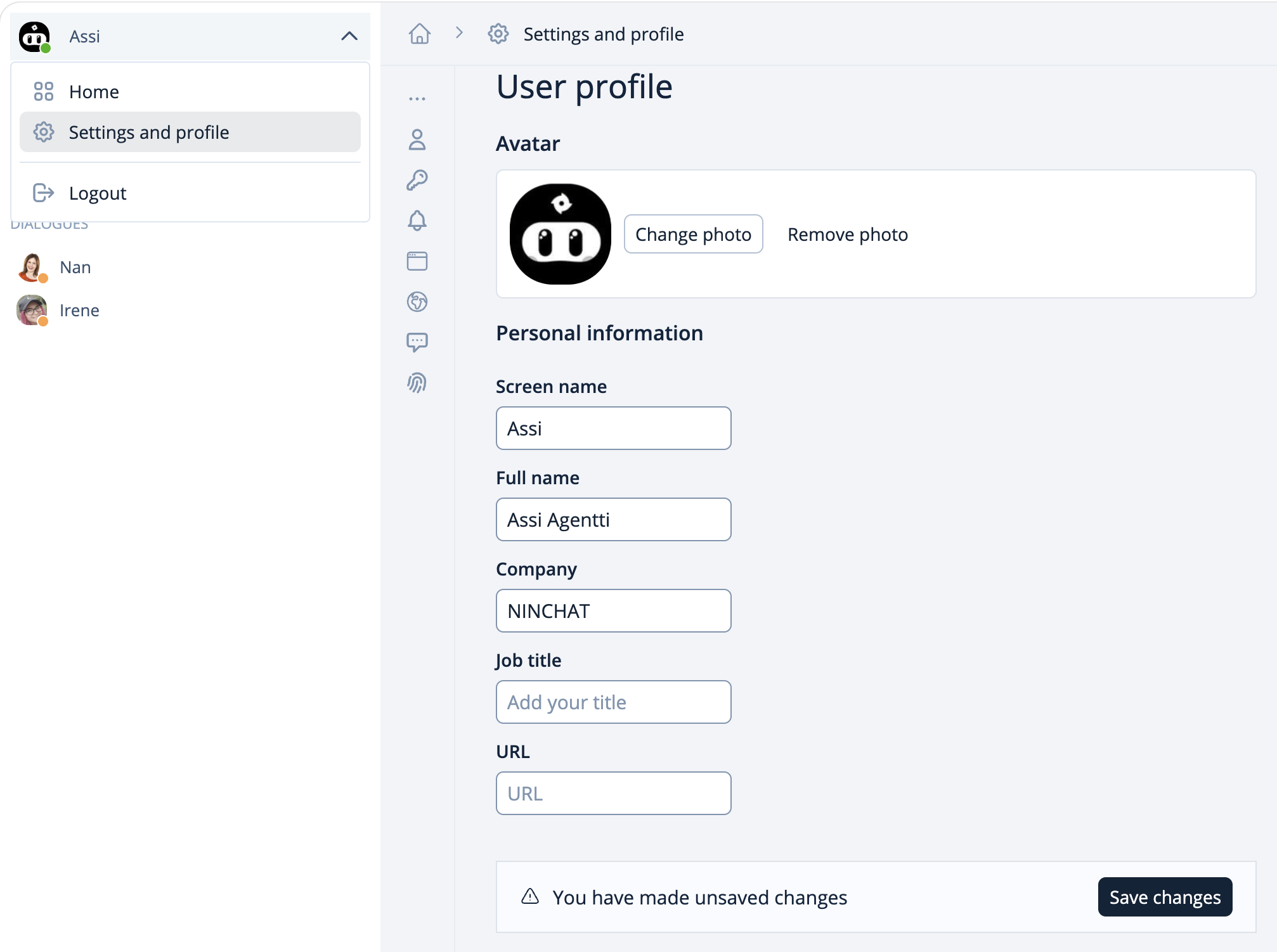
Click on the arrow next to your name. From the opening menu choose *Asetukset ja profiili/Settings and profile*.

<div data-with-frame="true"><figure><img src="https://498815019-files.gitbook.io/~/files/v0/b/gitbook-x-prod.appspot.com/o/spaces%2FIeqTSbNtGOeWTiig2G5l%2Fuploads%2Fgit-blob-a8ad7a653e05d821e91b0f9f16f6b710d4f562ab%2Fimage.png?alt=media" alt=""><figcaption></figcaption></figure></div>

Enter your preferred name in th *Screen name* field and your full legal name in the *Full name* field.

Upload a profile picture in JPG or PNG format.

{% hint style="info" %} <mark style="color:$info;">The</mark> *<mark style="color:$info;">Full name</mark>* <mark style="color:$info;">field is not visible to the customer.</mark>
{% endhint %}

Remember to save your changes.

### 2. Notifications

Navigate to the *Settings* and *Profile* view, go to *Notifications*.

Ninchat can notify you about events and messages in three ways: with sound, through desktop notifications, and by email. Notifications are also always displayed in Ninchat’s sidebar.

<div data-with-frame="true"><figure><img src="https://498815019-files.gitbook.io/~/files/v0/b/gitbook-x-prod.appspot.com/o/spaces%2FIeqTSbNtGOeWTiig2G5l%2Fuploads%2Fgit-blob-28db229cd0d442c62601a5aeae4bcb5b9d102101%2Fimage.png?alt=media" alt=""><figcaption></figcaption></figure></div>

In this view you can add or remove the notifications you want, for example email notifications.

You can also receive browser notifications (desktop notifications) while Ninchat is active. Set “Display notifications only when I'm idle” to Off.

You can choose if sound and desktop notifications are, or are not enabled when Ninchat window is active. You can also leave desktop notifications visible until you acknowledge them.

For more information, see the *User Settings* page:

{% content-ref url="/pages/-LNjHfdM4w\_wBuy7vMcu" %}
[User settings and profile](/ninchat-support/english-new/organization-member/user-account/user-settings.md)
{% endcontent-ref %}

## Channel

Through the invitation, you will gain access to your internal team channel, where you can chat with your colleagues about matters related to chat and other topics. You may also have been invited separately to a technical support channel, where Ninchat staff and your own support contacts provide assistance with chat-related issues.

Through the channel’s member list, you can also start one-to-one private conversations with your teammates. Read more on the following pages:

{% content-ref url="/pages/-LOxBUF-QqcRckVPLdX8" %}
[Channels](/ninchat-support/english-new/user-interface/team-channels.md)
{% endcontent-ref %}

{% content-ref url="/pages/-LP0T2UG0ozPhy1MOa2C" %}
[Private conversations](/ninchat-support/english-new/user-interface/team-channels/private-conversations.md)
{% endcontent-ref %}

{% content-ref url="/pages/-LNj9M0MpMwU61wNklFu" %}
[User Interface Introduction](/ninchat-support/english-new/user-interface/user-interface-overview.md)
{% endcontent-ref %}

## Customer queues and chats

Once you have been added as an agent for customer queues, your assigned queues will appear in the left sidebar, where you can access picking customers from the queues.

If you have been granted organization operator permissions, you can also open and close queues, change their settings, and view statistics. Your organization determines and assigns these permissions.

<figure><img src="https://498815019-files.gitbook.io/~/files/v0/b/gitbook-x-prod.appspot.com/o/spaces%2FIeqTSbNtGOeWTiig2G5l%2Fuploads%2Fgit-blob-5dd90a27b74999f9451983961413981cdbc5d859%2Fimage.png?alt=media" alt=""><figcaption><p>Customer queue: Closed (red), open (green), customer in queue (blue).</p></figcaption></figure>

<div data-with-frame="true"><figure><img src="https://498815019-files.gitbook.io/~/files/v0/b/gitbook-x-prod.appspot.com/o/spaces%2FIeqTSbNtGOeWTiig2G5l%2Fuploads%2Fgit-blob-81ef1f3d69e46d2486a3fe773ef1e99c73f6bc88%2Fimage.png?alt=media" alt=""><figcaption><p>You can pick customers from the queue using either the queue dropdown or the queue activity view.</p></figcaption></figure></div>

### **Customer conversation view** <a href="#asiakaskeskustelunakyma" id="asiakaskeskustelunakyma"></a>

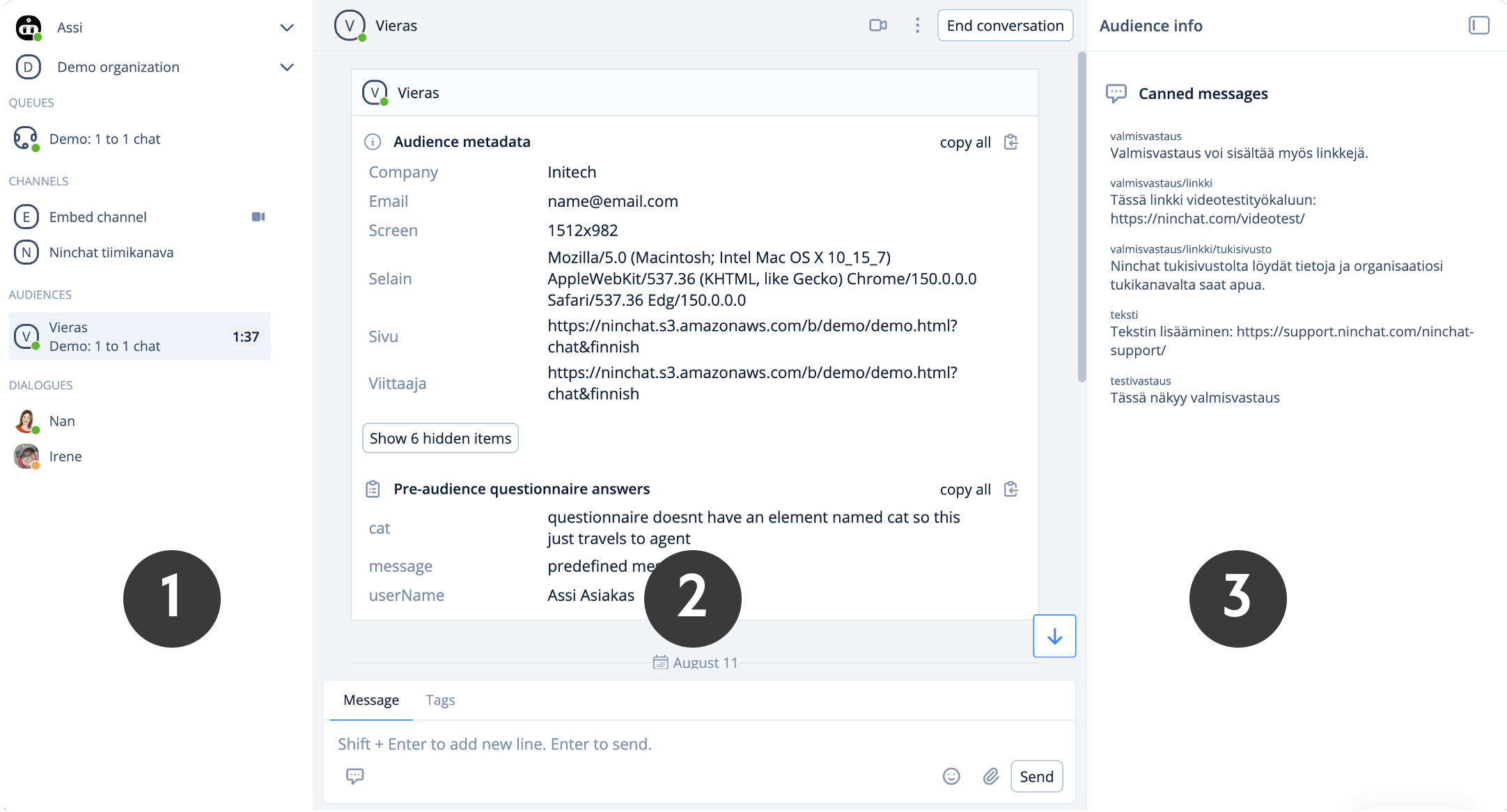
<div data-with-frame="true"><figure><img src="https://498815019-files.gitbook.io/~/files/v0/b/gitbook-x-prod.appspot.com/o/spaces%2FIeqTSbNtGOeWTiig2G5l%2Fuploads%2Fgit-blob-6d544ff48aebcb8ff87408d438a3632d000e6bcb%2Fimage.png?alt=media" alt=""><figcaption></figcaption></figure></div>

<table data-header-hidden><thead><tr><th width="197">1) Sidebar</th><th width="212.66666666666666">2) Conversation view</th><th>3) Chat sidebar</th></tr></thead><tbody><tr><td><strong>1) Sidebar</strong></td><td><strong>2) Chat view</strong></td><td><strong>3) Audience info</strong></td></tr><tr><td><ol><li>Notifications and User profile</li><li>Organization</li><li>Customer queues</li><li>Channels</li><li>Customer chat / Audience</li><li>Private conversations</li></ol></td><td><ol><li>Information about the customer</li><li>Conversation</li><li>Text area, emojis, attachments, video chat</li><li>Tags</li><li>Notes</li><li>Canned messages</li></ol></td><td><ol><li>Personal canned messages</li></ol></td></tr></tbody></table>

### Video calls

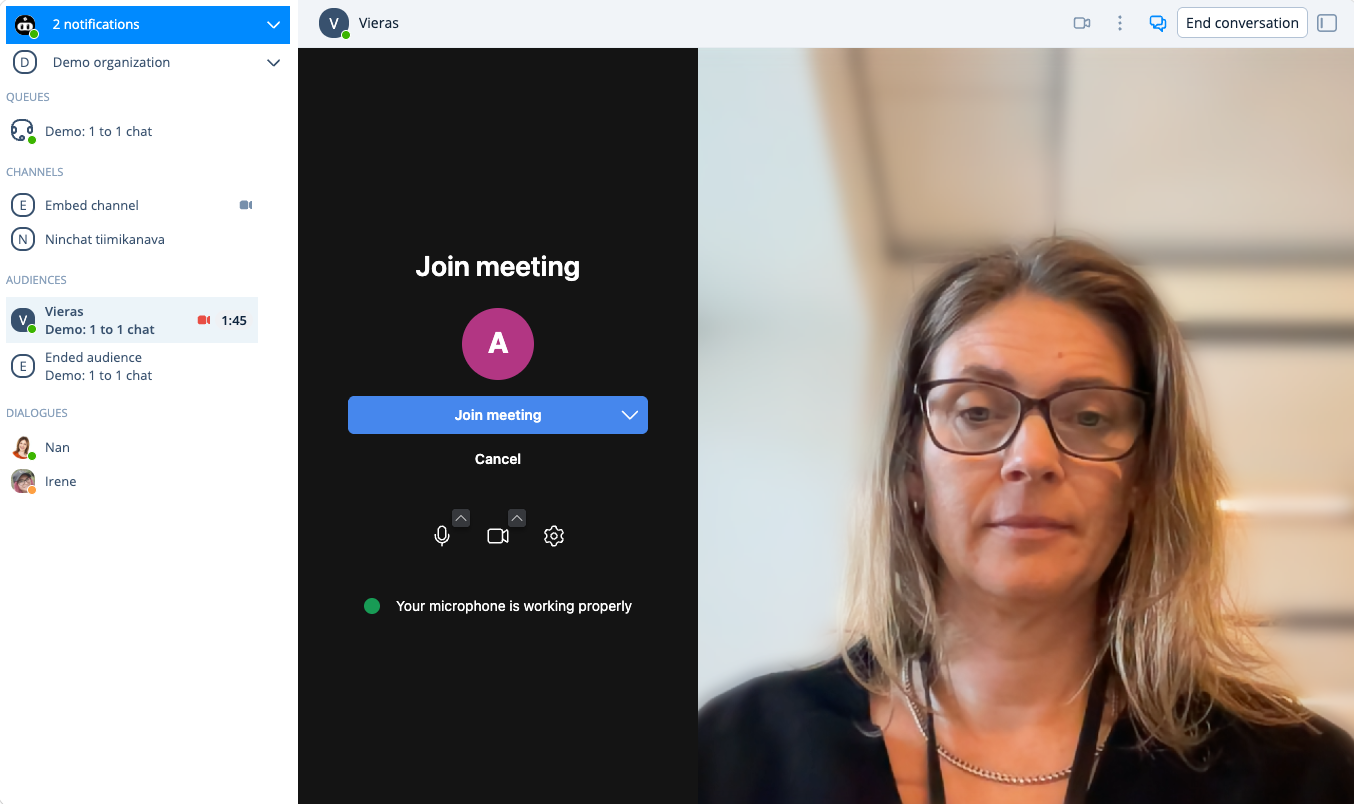
In customer conversations it is possible to use video calls when sending text and images is not enough.

<div data-with-frame="true"><figure><img src="https://498815019-files.gitbook.io/~/files/v0/b/gitbook-x-prod.appspot.com/o/spaces%2FIeqTSbNtGOeWTiig2G5l%2Fuploads%2Fgit-blob-5280506fc5c29850771971cf684d2ed9fb766fa0%2Fimage.png?alt=media" alt=""><figcaption><p>You can access audio and video settings before joining the videomeeting.</p></figcaption></figure></div>

Before you start using video chats, test the functionality and compatibility with Ninchat's Video test tool, which will tell you whether your equipment, browser, and internet connection work for video calls. [Open Video test tool](https://ninchat.com/videotest)

Read more about video calls:

{% content-ref url="/pages/N87mNfEhb2X55GaFTAXy" %}
[Video meetings](/ninchat-support/english-new/user-interface/customer-service-queues-and-conversations/video-meetings.md)
{% endcontent-ref %}

## Public group discussions

Public group discussions embedded on your organization’s website require a moderator. Channel operators can grant moderation rights to other members.

Read more about public group discussions and moderation:

{% content-ref url="/pages/-LNp84UX6\_nSMpe5XjMP" %}
[Public group discussions](/ninchat-support/english-new/public-group-discussions.md)
{% endcontent-ref %}

{% content-ref url="/pages/4jfQsSqVcQeKahqaf79D" %}
[Channel moderation](/ninchat-support/english-new/public-group-discussions/channel-moderation.md)
{% endcontent-ref %}

## Hints for members <a href="#vinkkeja" id="vinkkeja"></a>

#### Canned messages <a href="#canned-messages" id="canned-messages"></a>

From the user settings you can add canned messages that speed up and ease your work when answering to customers. Read more on page *User settings* section *Canned messages*.

{% content-ref url="/pages/-LNjHfdM4w\_wBuy7vMcu" %}
[User settings and profile](/ninchat-support/english-new/organization-member/user-account/user-settings.md)
{% endcontent-ref %}

### Highlights <a href="#highlights" id="highlights"></a>

Every time someone mentions your name in chat you get a notification. You may add more words and terms to highlighted words so you'll receive a notification whenever one of these are mentioned i.e. "sale", "lunch", "problem". Read more on page *User settings* section *Highlights*.

{% content-ref url="/pages/-LNjHfdM4w\_wBuy7vMcu" %}
[User settings and profile](/ninchat-support/english-new/organization-member/user-account/user-settings.md)
{% endcontent-ref %}

### Useful links:

{% content-ref url="/pages/-LNjsNeQrZ1Ttn5EXSpx" %}
[Forgotten password](/ninchat-support/english-new/user-interface/general-tips/forgotten-password.md)
{% endcontent-ref %}

{% content-ref url="/pages/-LP0hPhNu7m7aQElKo9C" %}
[Problems with sign-in](/ninchat-support/english-new/user-interface/general-tips/sign-in-problems.md)
{% endcontent-ref %}